

Using MailChimp is more efficient for Email Marketing. Here you get how to create account in MailChimp, create campaign, email list, create template and tracking report.
In this blog post the reader might get the full and detailed information about how to use MailChimp for the first time with simple and easy guidelines with practical image representation, and also find solution for creating the new email list and change email list name. How to create the new campaign and edit details in the existing campaigns. Know how to send email to a group of people or a individual people. Also guide available for how to create, add, and import subscribers into your email list. Let we start to see about all of the above mentioned topics and also more about MailChimp functions.
What is MailChimp?
MailChimp is a fast and convenient tool and application to send bulk email to your targeting audience. Actually MailChimp is a website which provide easy interface to customer to create Email campaign to their audience. In this tool a marketing person can easily send bulk amount of emails to their targeting people. In this mail feature can able to send invitation, newsletter, simple message, template message, customized sheet with call action messages can be send to multiple recipients within a fraction of seconds.
By using MailChimp a user can import collection of email and make list, then can create email campaign, then create message with simple and customized feature. In final those sending email details has to be maintained in report section.
Let see how to create and handle account in MailChimp, and also know how to send email using MailChimp using step by steps.
Step by step guidelines to create account in MailChimp:
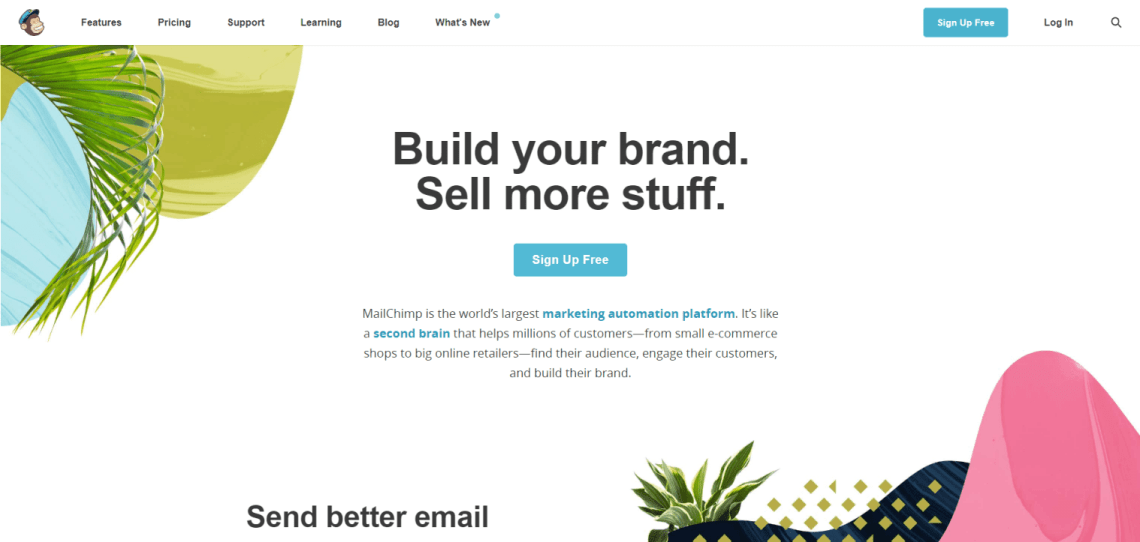
Now you can see the MailChimp home page dashboard with list of main menu like MailChimp’s Features, Pricing, Support and Blog.
First you have to know about the pricing details of MailChimp account maintenance. Depending upon your business you can select the plan type.
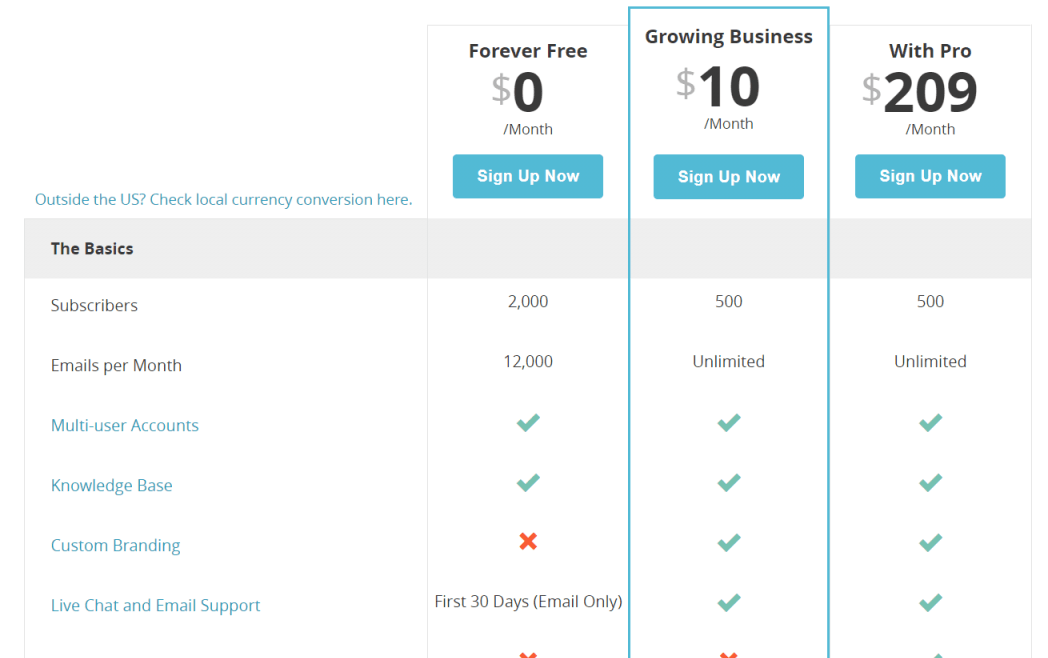
In general there are three types of plans are available, you can which one is suitable for your business, let see below the type of plans available in MailChimp
- New Business (Free Plan Forever)
- Growing Business (Starting at $10 per month)
- Pro Marketer ($199 per month)
New Business
This feature is enough for the people who trying to run their first email campaign, it also enough to achieve all the persons business goal at a initial state.
By using business plan, the user can get the feature of getting 2000 subscribers per month and can able to send 12,000 emails per month. If you looking for more than this feature then you have to choose another plan.
Also helps to create more attractive emails with simple and also with effective template design emails. That should never miss your target audience to attract.
Growing Business
If you are not satisfied with your subscribers or the limitations of sending bulk emails per month, then you can move to the next plan, called Growing Business.
This might give you to target more audience depending on the plan you are chosen. And the plan starts from $10, then it will be increasing, depending upon the features you are adding with your plan.
Table Includes Details About Subscribers / Emails Per Month / Monthly Cost
| Subscribers | Emails Per Month | Monthly Cost |
| 0 – 2000 | 12,000 | Free |
| 1,001 to 1,500 | Unlimited | $20.00 |
| 1,501 to 2,000 | Unlimited | $25.00 |
| 2,001 to 2,500 | Unlimited | $30.00 |
| 2,501 to 2,600 | Unlimited | $35.00 |
In above table shows the complete details about the MailChimp plans. Depending upon the plan you are choosing, that much access can be enabled in your account.
In the premium plans, the subscribers range starts from minimum 1,001 to 1, 500 and maximum 2,501 to 2,600.
Emails Per Month shows, the amount of emails can be able to send from your account per month, it also depends on the plans. Limitations only for free plan. Once you choose the paid plan then you can able to send unlimited emails per month, only the subscribers range can vary
Monthly Cost shows the price tag in $. It also varies depends on the plans you are choosing. Depending upon the subscribers you are looking for your business, then your monthly cost varies. Monthly Cost starts from $20 to $35
Pro Marketer
Pro Marketer plan is best for the people who running the multiple organizations and targeting their audience in many different categories.
The efficient and effectiveness of send the email to many people with different category will be more easy by choosing this plan.
Pro Marketer Plan is available at the price of $199 per month, then the feature it consists is enough to achieve all your business goal. For more goto https://mailchimp.com/pricing/
How to sign up free account in MailChimp?
- Goto https://MailChimp.com
- Now you can see the Signup button at the right side top corner
- Click the Signup button, now it will take you to Signup Page.
How To Use MailChimp Effectively?
Get Started with your Free MailChimp Account:
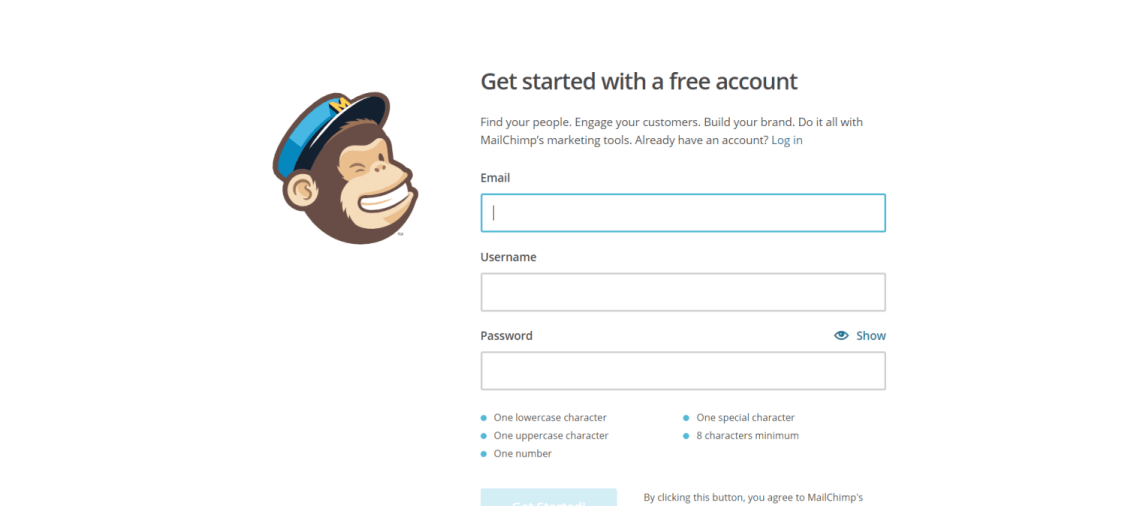
- To get started with your free MailChimp account, enter your active Email address in the Email box.
- Enter the Username and Password you wish you want to your MailChimp account.
- The password should contains atleast one lower case and one upper case character, one special character and one number, and the overall characters should be atleast, 8 characters.
- After you complete the password field, then click the Get Started button.
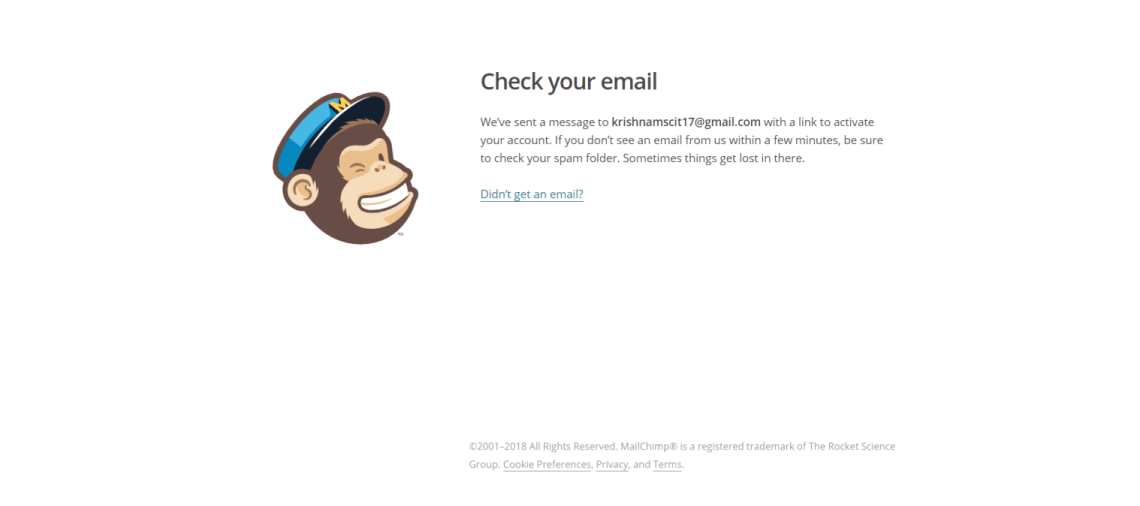
- Now the account activation email has to be sent in you Email Id you have entered.
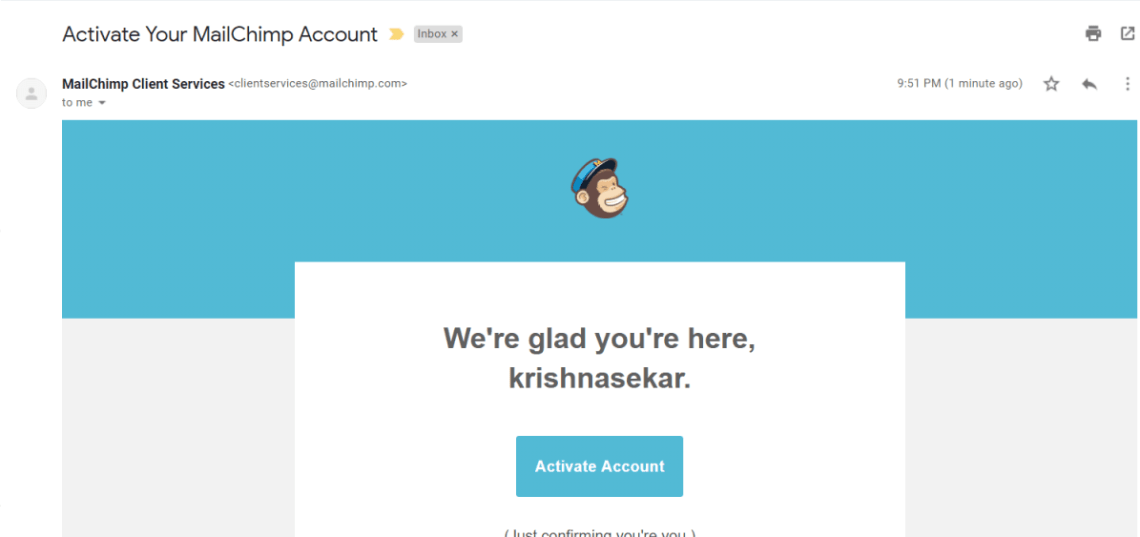
- So, go to your Email and see your latest mails, now you can able to see the MailChimp Client Services message, now click on the message, then click the Activate Account button available in the message.
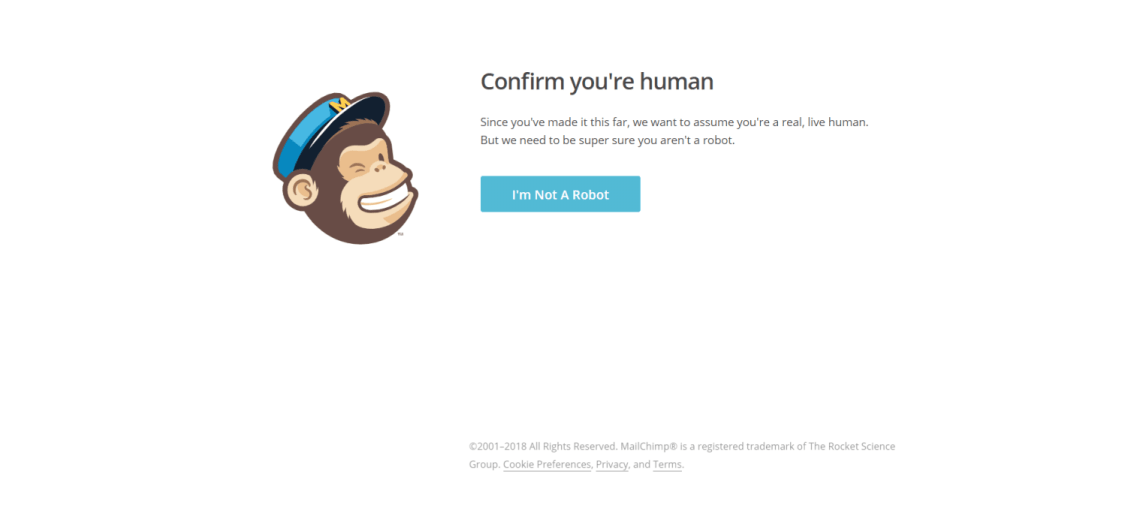
- Then it will redirect you to the Confirm Humanity page, click on the checkbox to mention I’m not a robot, the you redirected to next page called Welcome to MailChimp.
Welcome to MailChimp
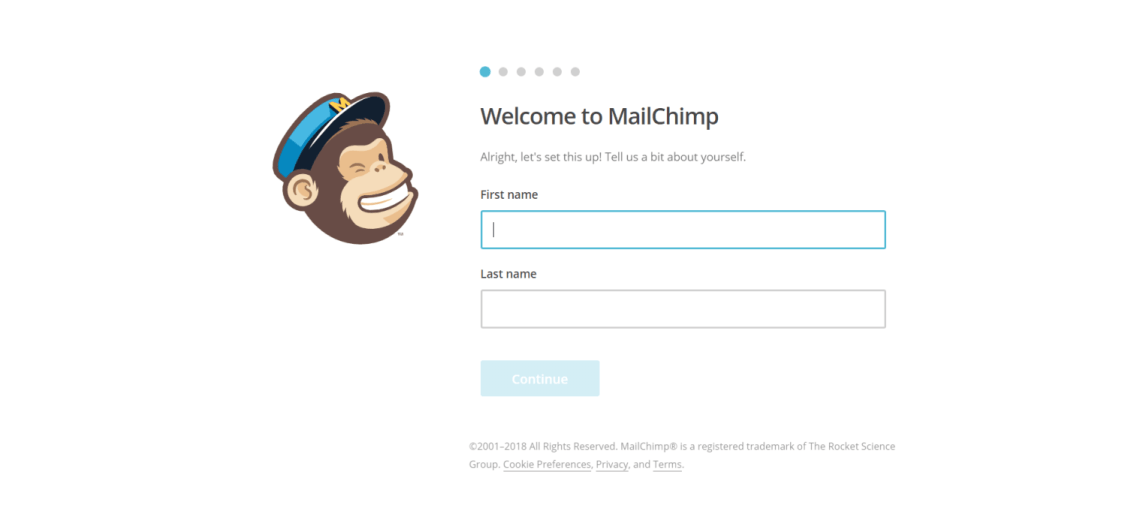
- Enter your FirstName and LastName for you account setting in MailChimp.
- Then click continue
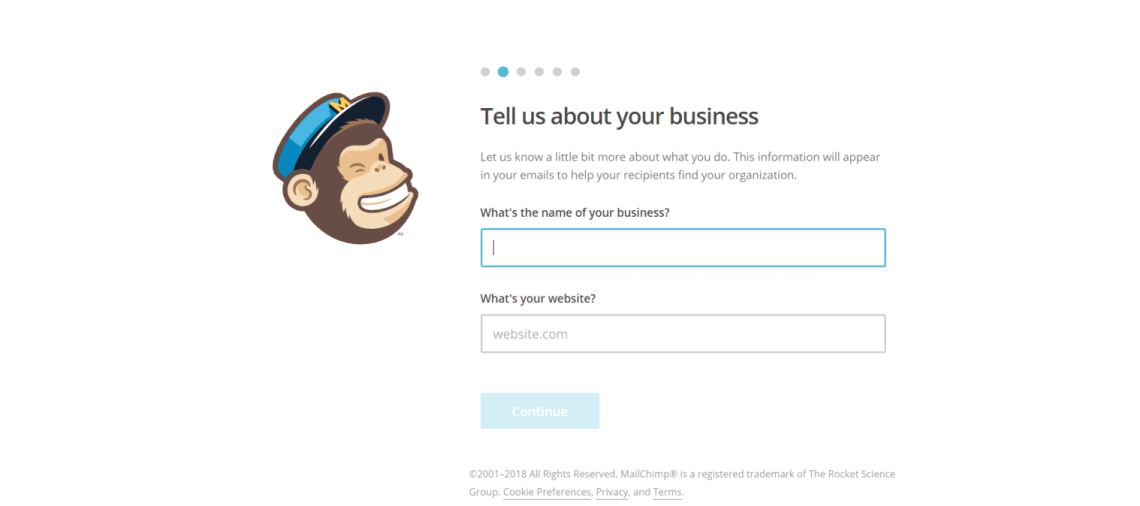
Next, Tell Us About Your Business
- Enter the name of your business in the field of What’s the name of your business?
- Now enter your website URL in What’s you website? Field
- Then, click continue.
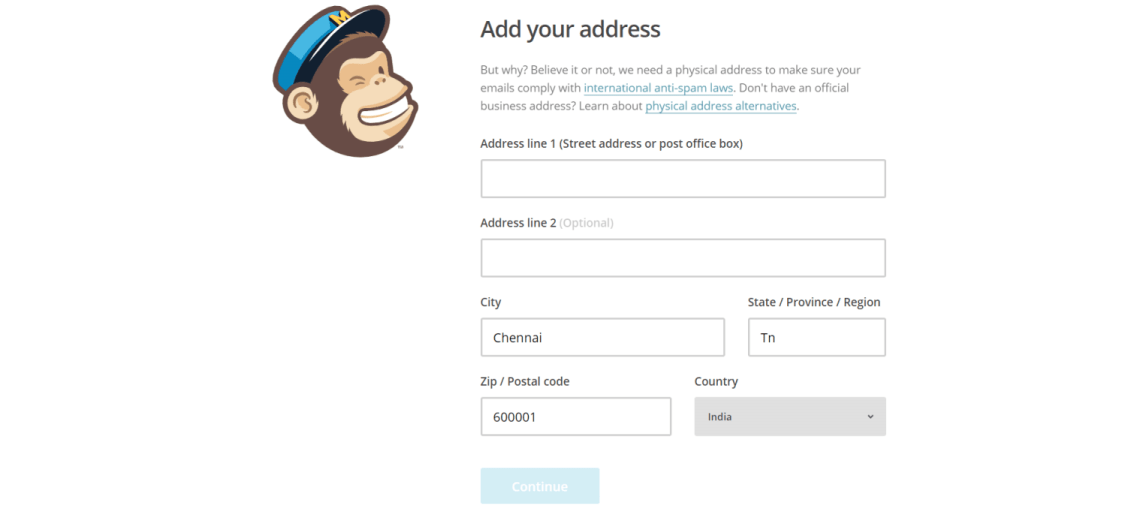
Next, Fill Your Address Details
How To Change Your Address On MailChimp
- Fill the Address Line 1, which include the street address or the post office box.
- Next, fill the Address Line 2, this field is optional, in here you can include more about
- Enter you city and state name in the appropriate box.
- Enter your Zip or postal code and select your country in the dropdown box.
- Then, click continue.
Next, Fill about your Online Business
Now select any one of the radio button, which shows yes or no option for the question about Does your business sell anything online?
Depending upon the type of business you are having, choose the right one.
Then click the continue button.
Next, Connect Social Media
By using this option you can create your own social post and share those post with the followers your are having in your social account.
- Choose your social account like Facebook or Twitter.
- Then click continue button.

Now Your Account is Ready
Yeah, now everything is going good, you are successfully created your account with MailChimp, still the MailChimp gives you more options like.
- Subscribe to getting started
- Subscribe to What’s in store
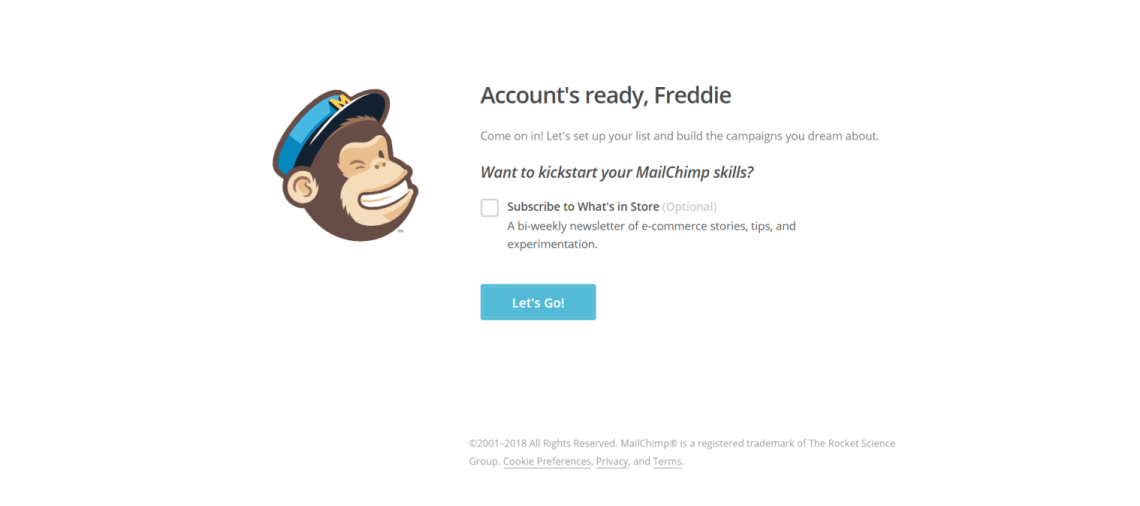
Both the field are optional, if you need any of the above then you can select the appropriate suitable one.
Then click continue.
Now you are successfully entered into the MailChimp dashboard.
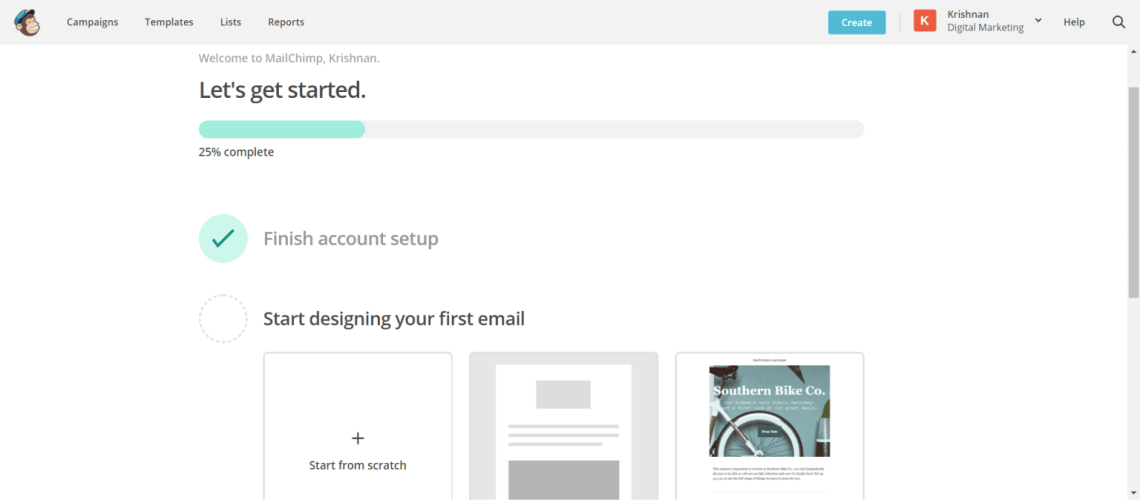
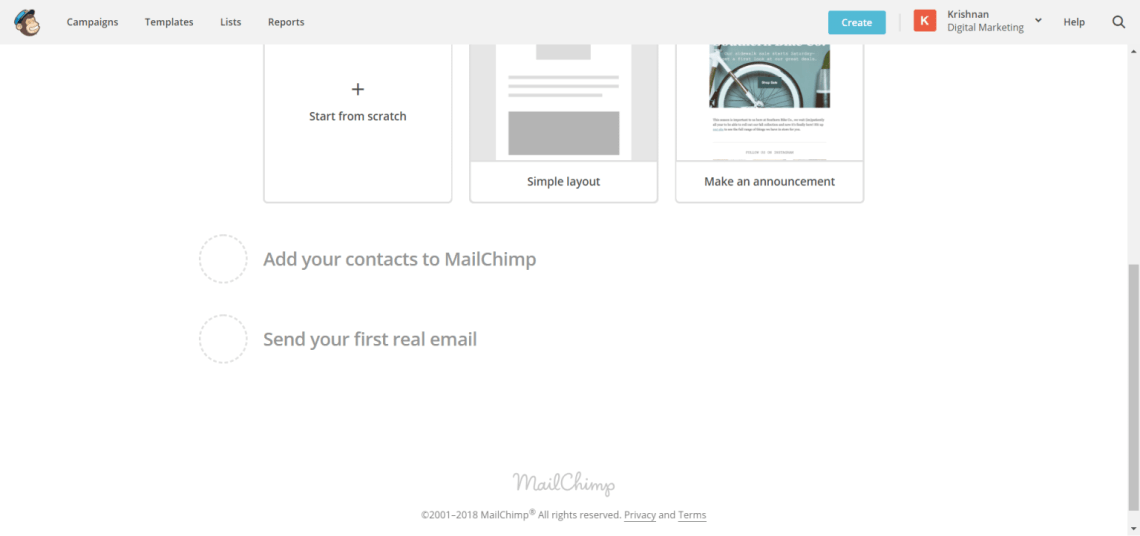
Now you can see the Five important controls available in MailChimp, those are
- Campaigns (How to edit campaign in MailChimp)
- Templates
- Lists (How to create a new list in MailChimp)
- Reports
- Automation
Let we see all the above controls in detail
How To Use MailChimp? The Complete Guide to work with it!
Step 1: How to create a Email Campaign in MailChimp:
First we start with the Campaigns, the campaigns describes about the overall control of the particular function. That helps to group multiple email messages with list of recipients. And also support multiple features, let we see all of the things as follow:
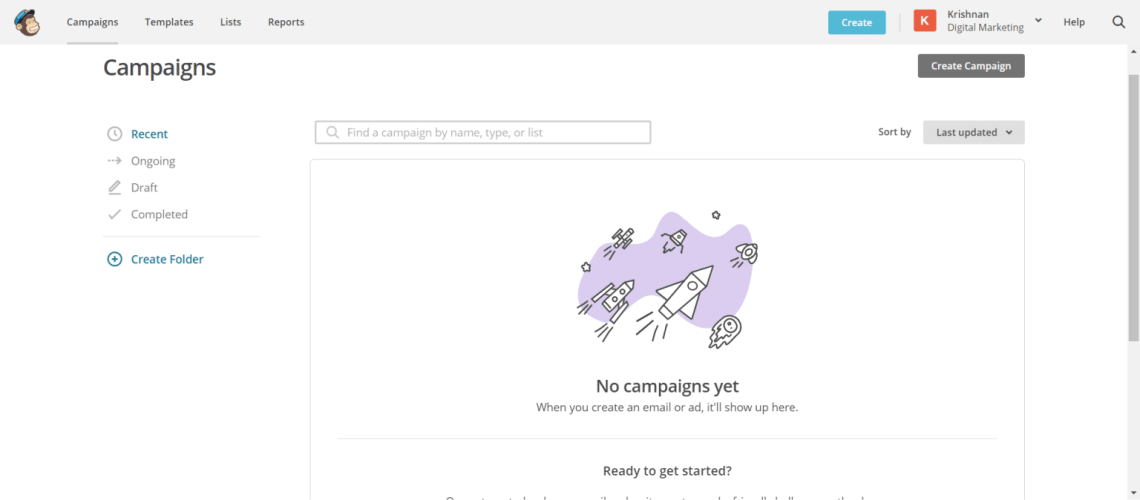
Click the Create Campaign blue button in the right side corner in the dashboard
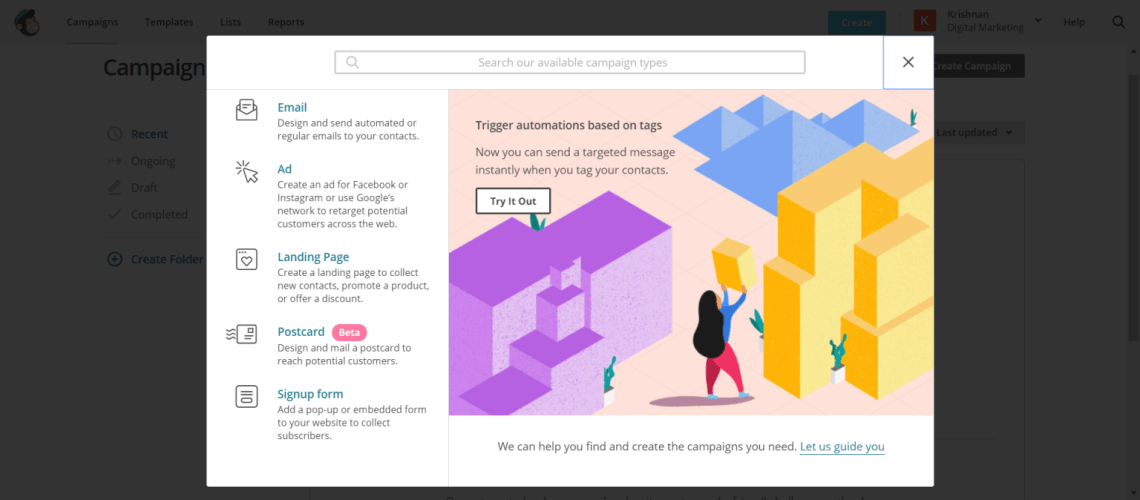
Now, select the Type of Campaign to Send
- Regular Campaign (Plain Text with HTML elements)
- Plain text-campaign (Email with only plain test, without pictures or formatting)
- A/B testing Campaign (Send three different campaigns to check best subject, email id, from name, time and date to send campaign)
- Rss Campaign (Send Rss content to a list)
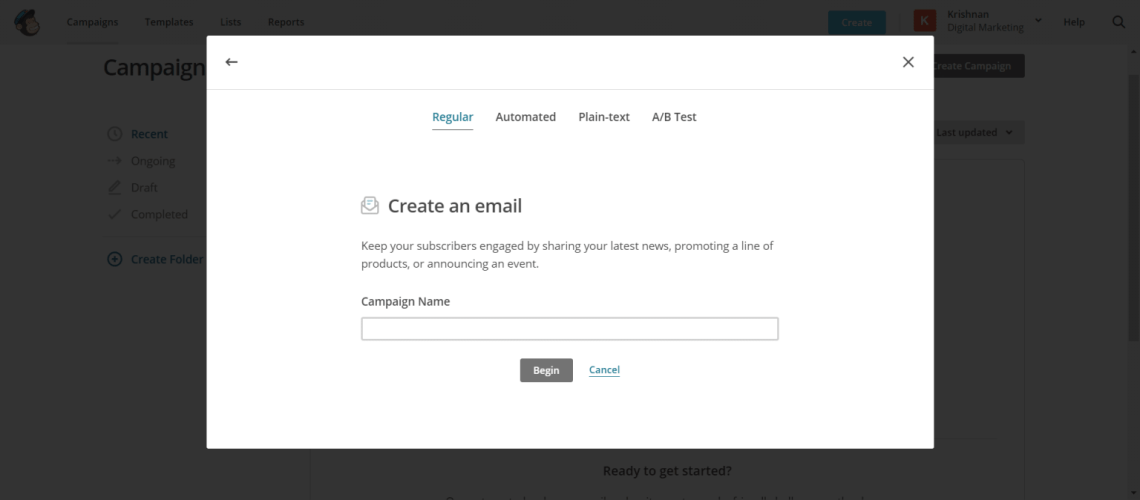
Click the Select button to choose the best one, that should be flexible for your business and targeted audience.
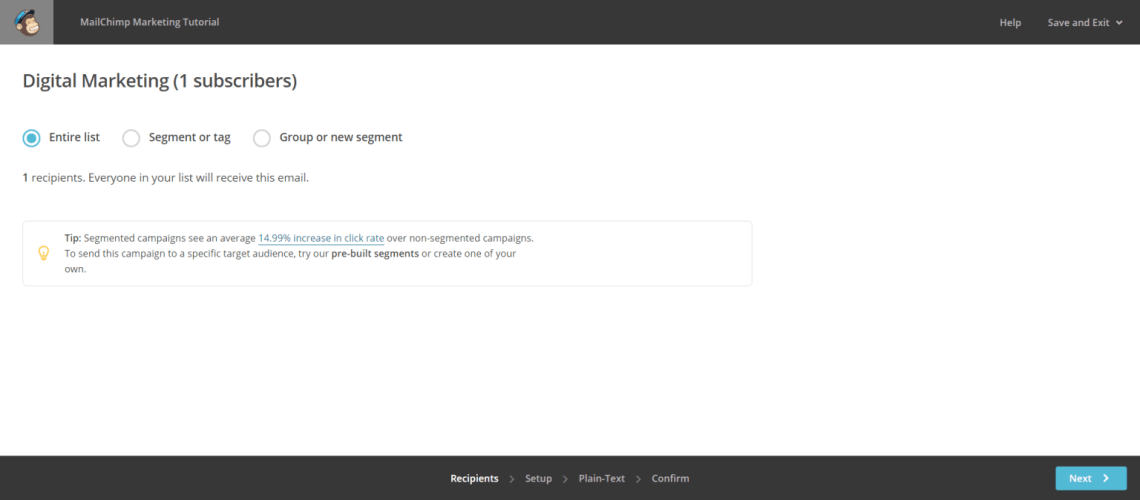
Send Test Email to Yourself
- First enter you email address in the text box
- Then click the Send to Yourself button to send email to your own email service.
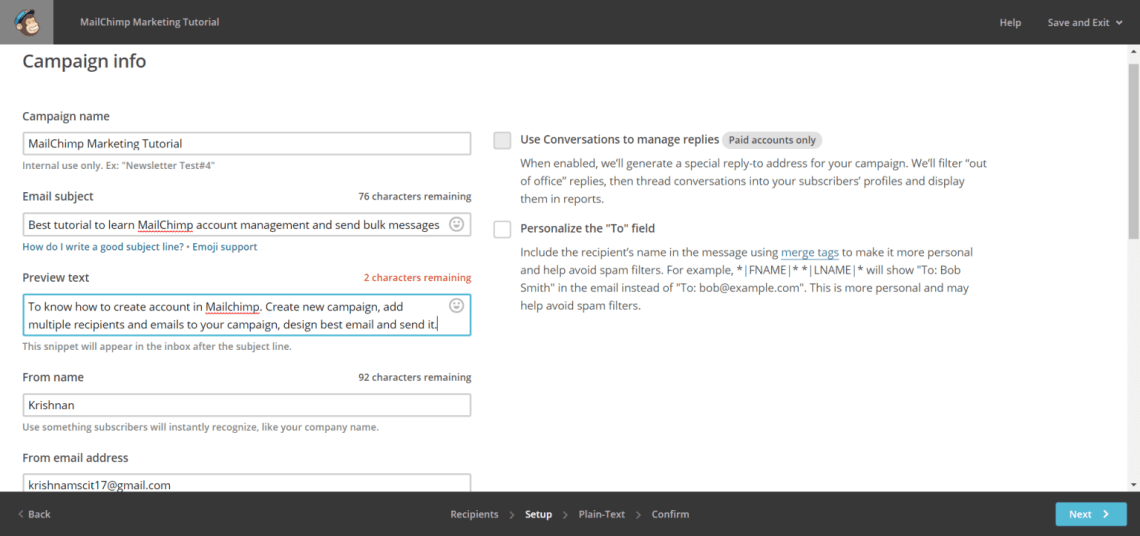
- Then it will move into next step “Campaign Info”
- Enter the Campaign Name, and it is only for internal usage, and it will not be displayed on the email.
- Next, enter your Email Subject within 150 characters.
- Enter your From Name, use below 90 characters.
- Enter your From Email Address, use only active and valid email address.
Additional Options
You can also use the must need features for take reporting, those are listed below:
- Track Options
- Track Clicks
- Track Plain Text Clicks
- E-Commerce Link Tracking
- Click Tale Link Tracking
- Goal Tracking
- Track stats in Salesforce or Highrise
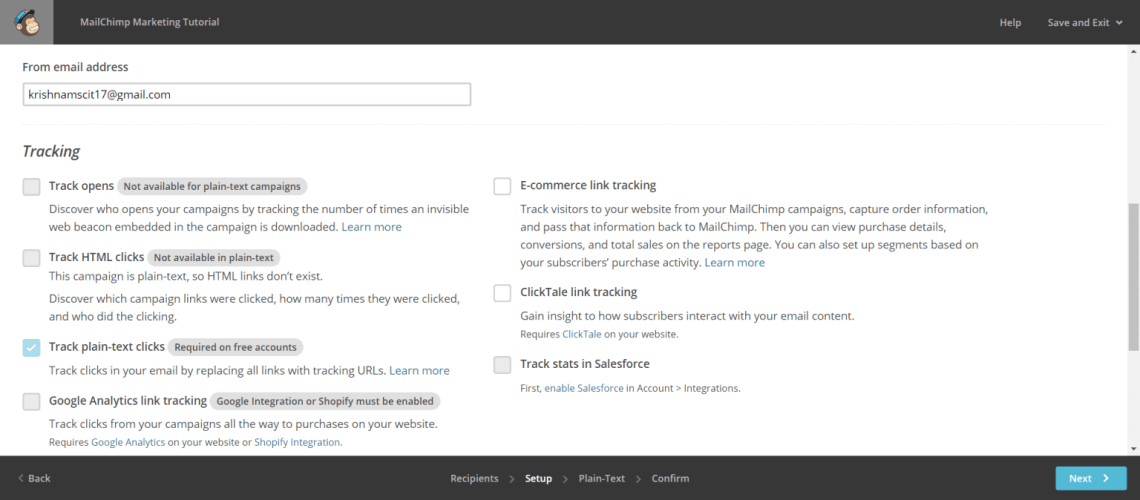
All the above listed features contains the checkbox option, depending on your need, you can select the necessary field as your wish.
Social Media Features
This social media feature helps to share your prepared email to your popular social media like Facebook and Twitter.
- Connect to Twitter (After the successful email sent in MailChimp, that email will be send into your twitter account by the tweet, then this email will reach all your followers in twitter)
- Connect to Facebook (Share this email to your Facebook account and reach all your friend list)
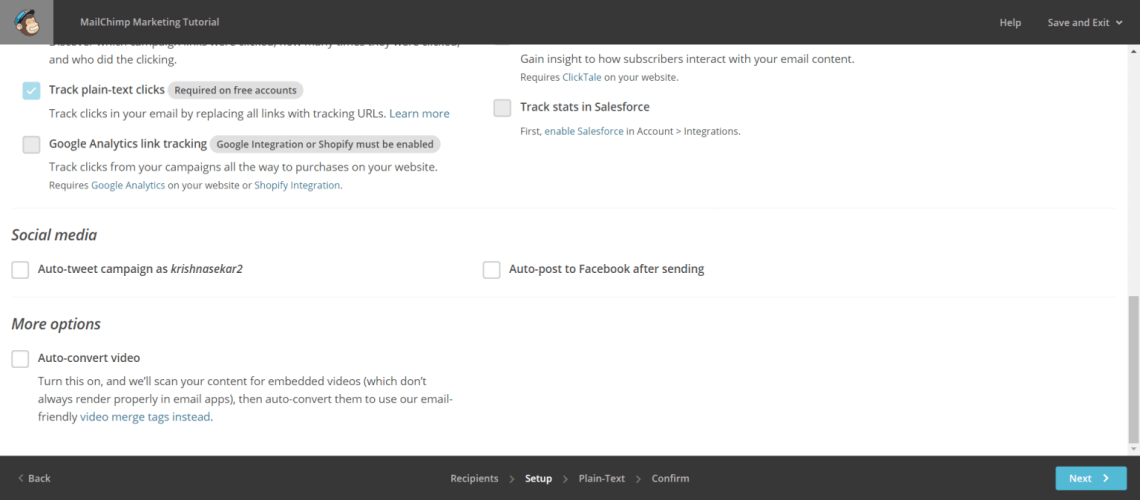
More Options
Auto Convert Video
Helps to convert your email into video, then you can able to share those video on video optimization website. This video will show the details of your email message.
Step 2: Select a Template in MailChimp
Different types of templates available here, you can choose the best one for your target audience. Those are:
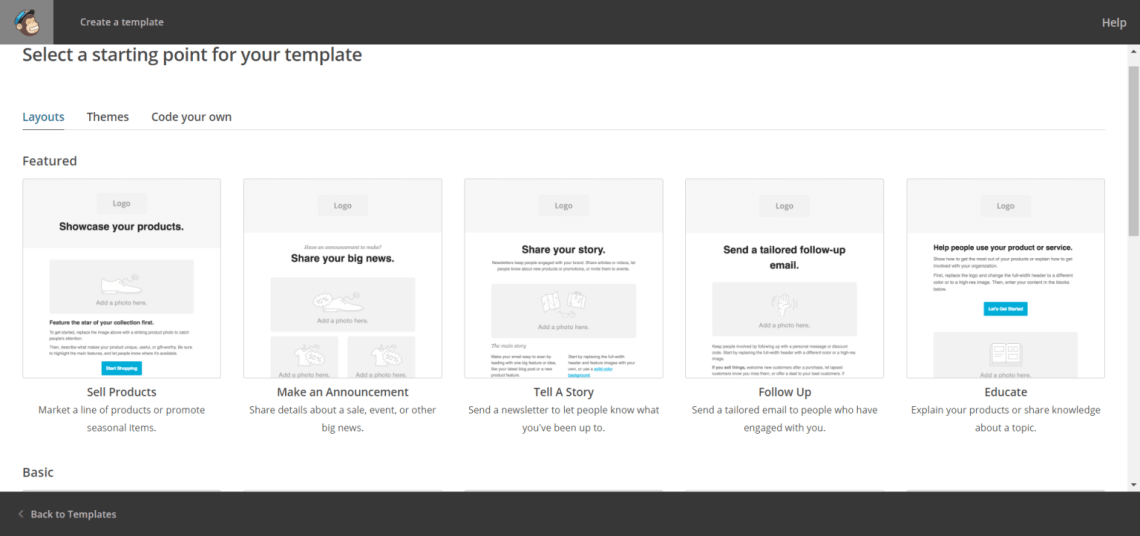
- Basic Templates (Column Based Templates. Ex: 1 Column, 1:2, 1:2:1, etc.,)
- Themes (Predefined themes with multimedia designs)
- Saved Templates (Choose your saved templates that you already have in you library)
- Campaigns (Select the campaign that you already used)
- Code Your Own (Copy and Paste your own HTML code)
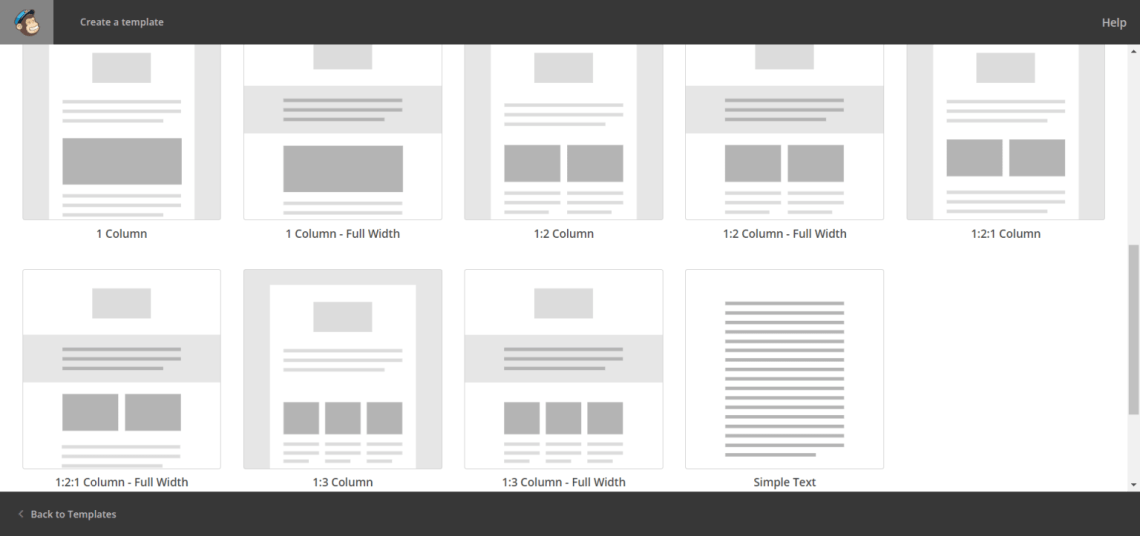
- Now select the one template which is more apt for your campaign, and always keep in mind about your target audience and start designing your message.
- Click the Get Start button
- Now start edit the template you selected. All the edit options are click and drag option only, so you can easily edit the design with your own content and multimedia files.
- In the template you can add link to your social media profiles like Facebook and twitter. Can also add the website link with anchor text.
- Add images from your device to the mail template. Browse it from the device and upload it.
- Then click the next button at right bottom. Then the option you have entered and completed fields are available here. So if you have any idea to change your fields value you can use the edit option available for each field to change its value.
You Are All Set To Send! In MailChimp
Those fields are: List, Subject Line, Replies, Tracking, HTML email, plain text email, default text content, social cards, etc.,
This dashboard also shows if any error occurs on any one of the above field, if any single error occurs, then you cannot move on to further steps.
If you find any errors available in here, then change and correct the errors and make this dashboard as error free.
Once you finished all the above steps successfully the click the next button to finish the email configuration.
How To Send a Email To One Person In MailChimp
Run the Test Mail
To run the test mail on MailChimp, click the preview option available on the top of the main menu.
- Select Run Test Mail option.
- Enter the Email id of the person who has to receive this test mail.
- Click, send email button.


How to Setup MailChimp List And Add Bulk Emails Into The List:
Click the dashboard option to start add the new list of email addresses.
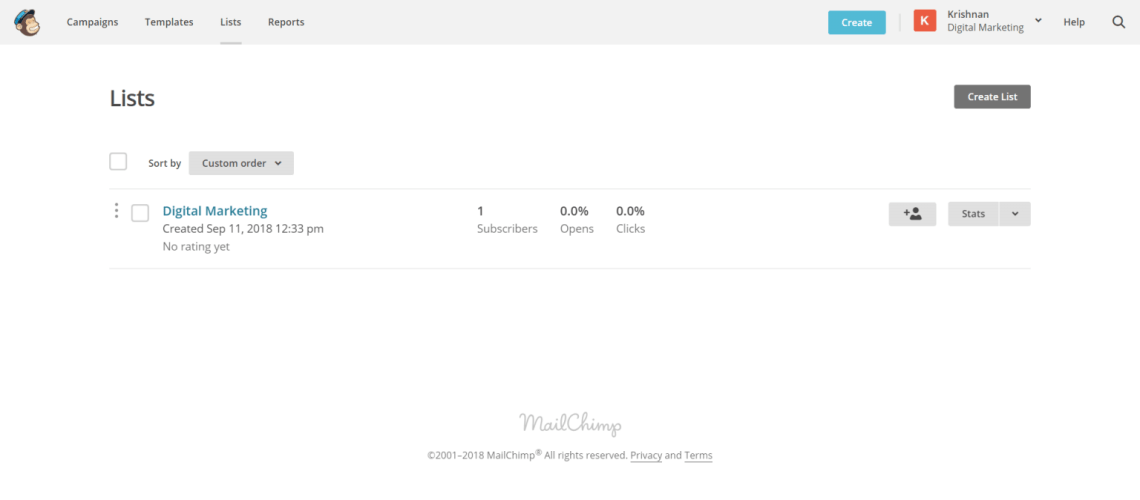
- Click the Lists option in the top main menu list.
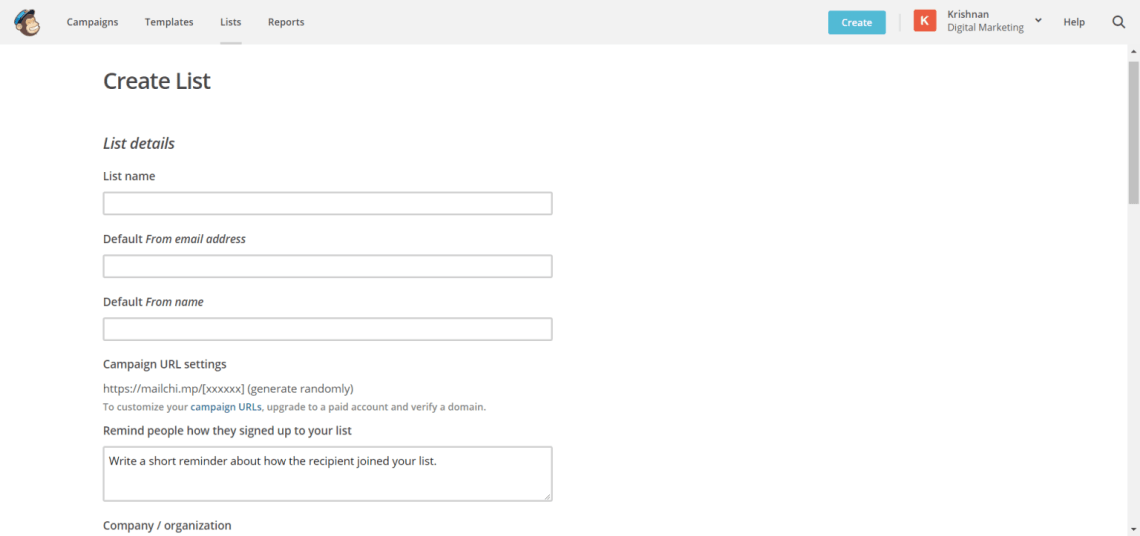
- Click the Create List at the right top side.
- To create the new list enter all the necessary list details
- Enter the List Name
- Next, enter the Default From email address (The people will reply to this email address)
- Enter the Default From Name
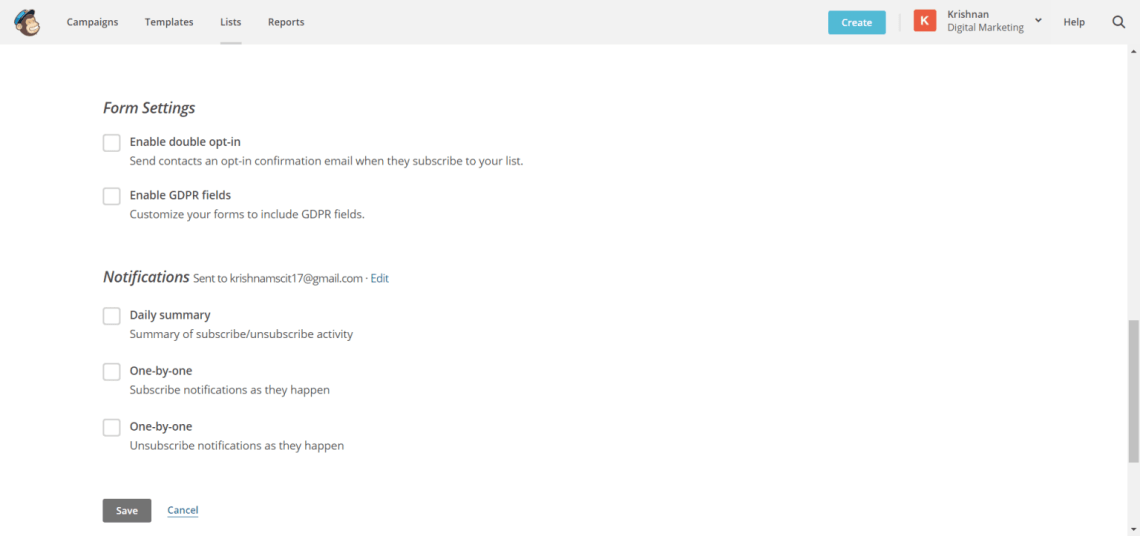
- Create the alert message for sending newsletter, email notification for the subscribed recipients.
- Enter the company or organization name.
- Enter the address details like street name, city, zip code, country, phone (optional).
- Choose the Notifications option
- Info about subscribed or unsubscribed activity (Daily Summary)
- Info about subscribed activity (One-by-one)
- Info about Unsubscribed activity (One-by-one)
- Then click the Save button to save all the changes.
How to Add Subscribers Manually
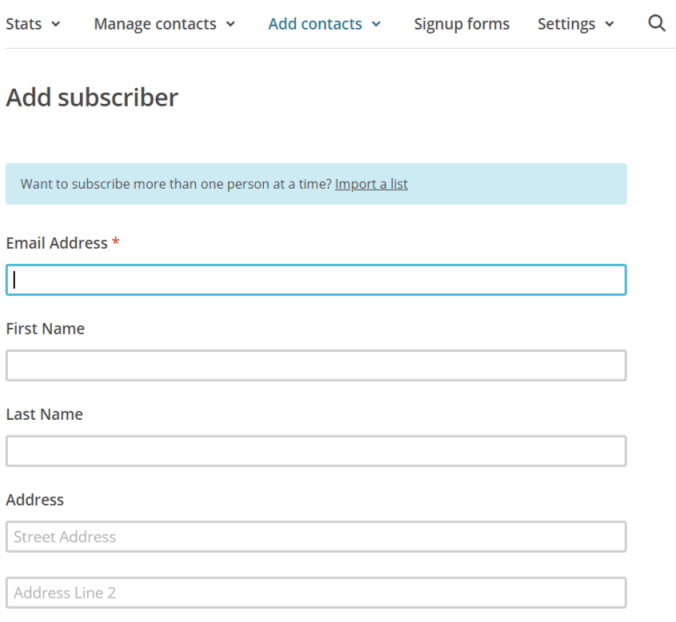
To add subscribers manually to reach your email automatically whenever you create new email,
- Goto Lists
- Click Add subscribers option, and select Add a Subscriber
- Enter email address of the recipient who has to be added manually
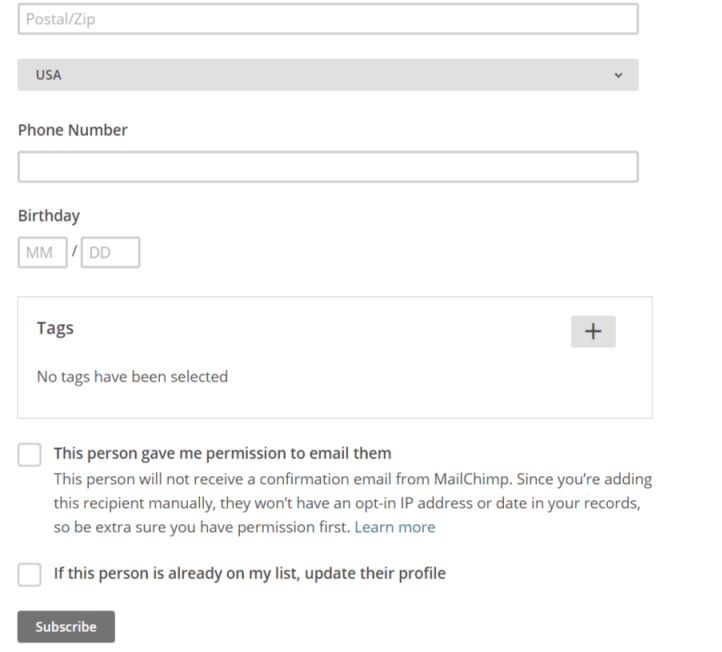
- Enter FirstName and LastName.
- Then, click Subscribe button.
How To Import Subscribers In MailChimp
- Goto Lists
- Select Add Subscribers option
- Select Import Subscribers option
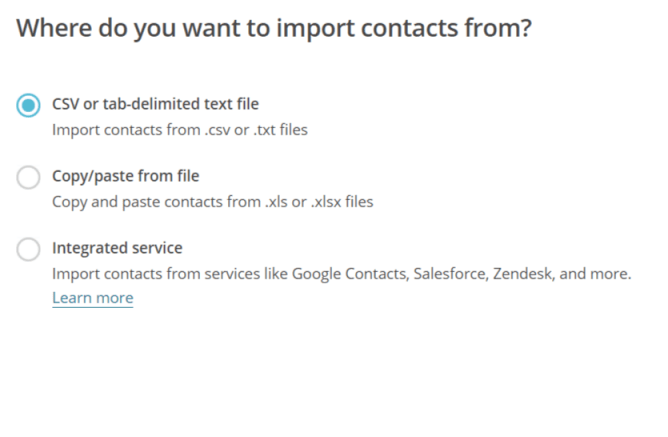
- Select option to import subscribers
- Import emails from .txt file and .csv (CSV or Text File)
- Copy and Paste email from .xls or .xlsx files (Copy and Paste File)
- Using Services to import contacts from Google Contacts, Salesforce, Highrise, Zendesk, etc (Integrated Services)
- After you complete the successful import of subscribers option, click the save. And click next.
- Now goto the customized email dashboard, and edit the email list, and select the imported subscribers list and then click the next button.
- In the composed email dashboard, click the next button to process further to send mail.
- Click the confirm button at the bottom of the dashboard.
- Then click the send button at the bottom of the window.
- Finally click the Send Now button to send the prepared newsletter to your subscribers.
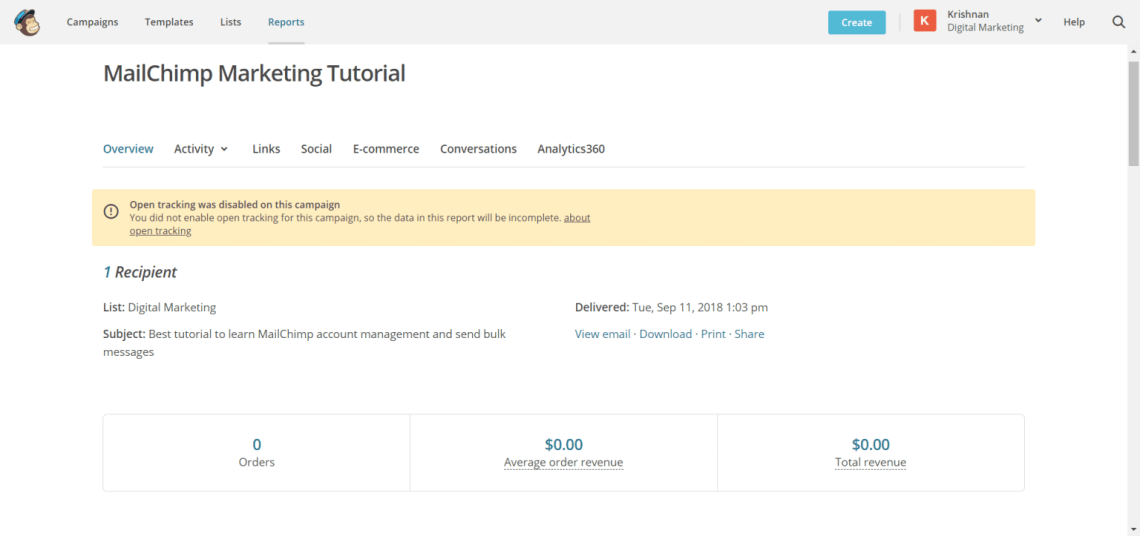
How To Monitor and Working With MailChimp Report Section
- Report section consists of two major sections, one is Overview and Revenue
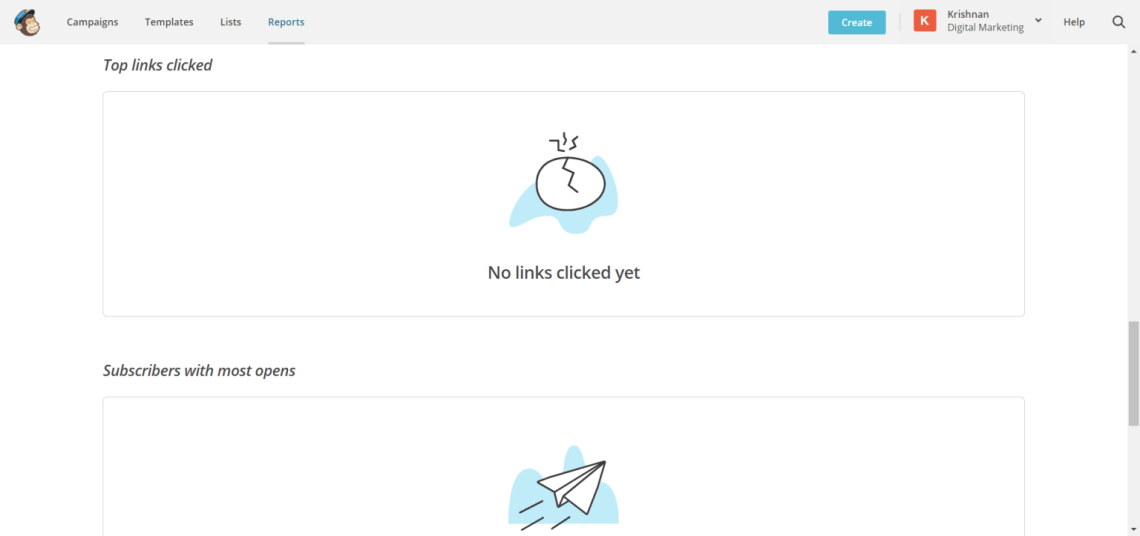
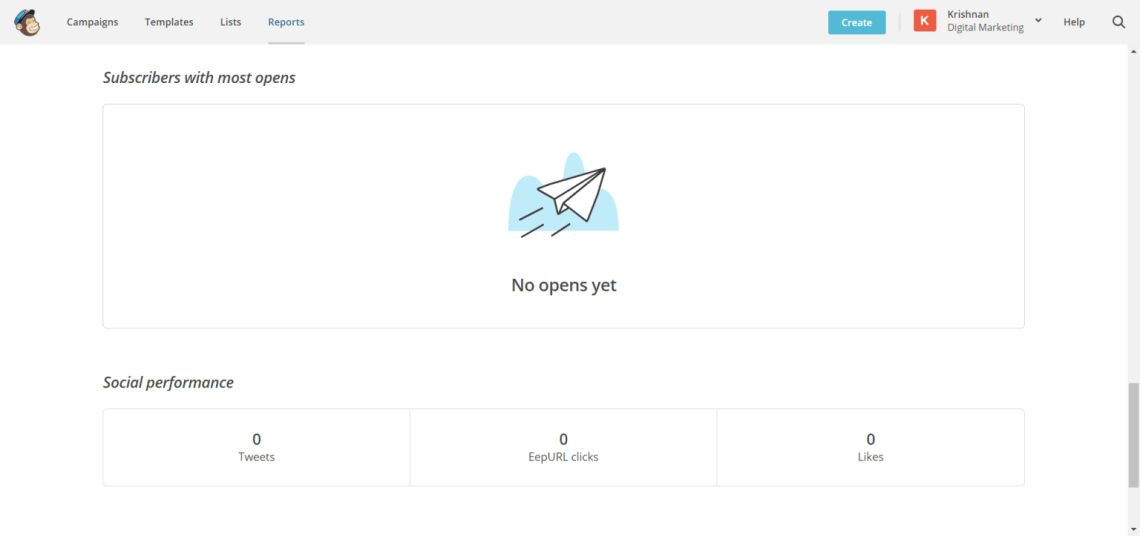
- It shows the report detail about all the campaigns available in your account.
- Mainly it shows the detail about lists (email lists)
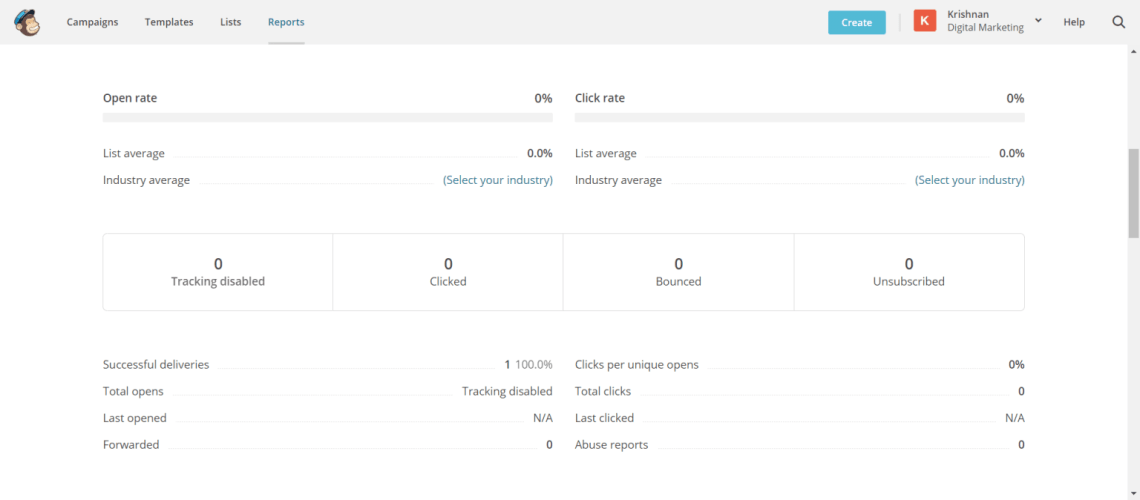
- Get complete information about the individual list’s
- Open Rate
- Click Rate
- Industry Avg. open rate
- Bounced
- Unsubscribed
- Successful deliveries
- Forwarded
- Last Opened
- Last Clicked
- You can also check the Geo Location of where the emails are opened using the Reports dashboard.

MailChimp Quick Overview
MailChimp is a best in class Email marketing tool and it helps to reach your newsletters, emails to your targeted audience. It provides free subscription option for 2000 users and you can able to send around 12,000 emails per month. To reach multiple recipients at the same time using email, then the MailChimp is the Master. Also provides best dashboard to customize your email list, mail template and tracking reports. By designing the template for your message, this MailChimp is more user friendly than all other Email Marketing Tools.

 Latest Digital Marketing Trends Tips Guidelines