
Google Adwords Express is the best ads management marketing tool, that is very good alternative tool for google ads. It is a traditional ads management tool, and it is best for the person’s who doesn’t have time to manage their advertisement on internet. By using the google adwords express, you don’t need to worry about the keywords, bid management, scheduling the ads and managing your advertisement campaigns. The Adwords Express automatically manage your advertisement campaigns based on your monthly bid, the location you targeting, the category keyword you have selected and the business goal you have set for your ads that depends upon your targeting audience.
If you looking for a product that should automatically manage your advertisements, then the Adwords Express is best for your business, by using it you do not need to manage your campaign daily, don’t need to manage your budget, and many more features.
The customers who looking the product or business like your business may looking for their solution on internet, the Adwords Express helps to redirect those kind your niche oriented customers into your business pages from google search or google map.
How Does Adwords Express Works?
Business peoples are already busy to manage their business, they doesn’t have that much human resource to manage their online advertising campaigns, for this situations the Adwords Express plays a vital role on it.
What you have to do for managing you ads on Adowrds Express are:
- Create Your Ad with your business details
- Select your total monthly budget based on every day bid management
- Select your product or services for your business
- Select the keyword and phrases for your ads
- Remaining will be automatically managed by Adwords Express
When your selected phrases or the keywords are searched by the customer on the google, your ad is eligible to display on the google search result at either the top or the bottom of the page, and also will appear on the google map, the location of ad will be appeared on map or the map search result.
You will only be charged when the customer clicked on your ad, and also you can change your ad settings at any time when you want to change it. Your remaining budget amount will also stay remaining when you want to change your ad.
What are the benefits available to publish ads using Adwords Express?
- Easily create your online ad with quick steps
- Advertisers will charged only when their ad is clicked
- More opportunities to redirect your business customers to your landing webpage or google plus page.
- Does not need any special management for your ads, it is purely only for your business and fully optimized for your wish.
- Attract all the customers, those are may be desktop users and mobile users.
- Simple dashboard available to track your overall advertisement management.
How to use Google Adwords Express?
Using Adwords Express is very easy and simple task to run and implement your first ad. Many options and features that are available in Google Adwords Express. Let I discuss with you about each and every features that are available in it.
How to Login In into Google Adwords Express?
- Goto www.google.com/adwords/express/
- Click on the Sign Up button, it will redirect you into gmail login board.
- Enter your Email and Password and then click Next
- Then you will be redirected into Google Adwords Express general dashboard.
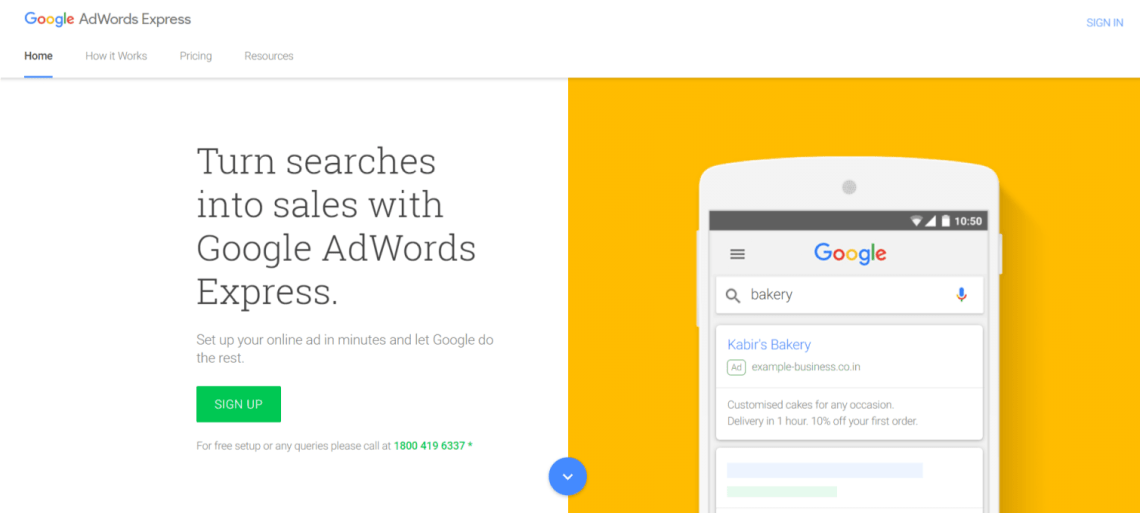


At the initial login you can not able to see any ads on your dashboard, now your dashboard looks empty.
What are the Menu Options Available in Google Adwords Express?
Once you entered into your google adwords express dashboard you might see the menu option at the left top corner.
Click on the menu icon, now you can able to see your full adwords express account settings details. They are
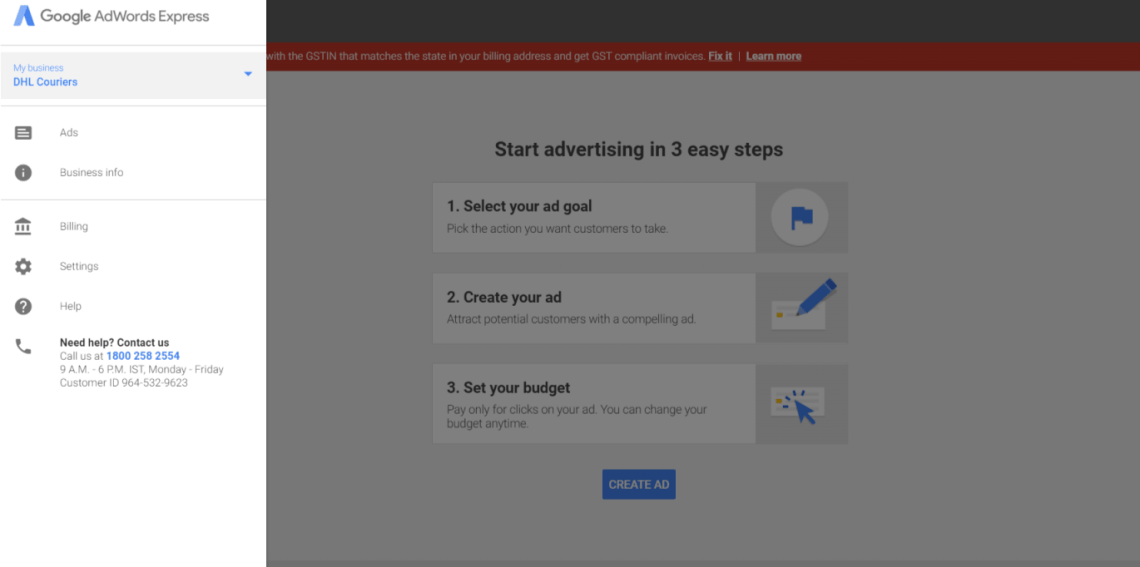
- List Of Registered My Business Accounts
- Ads
- Business Info
- Billings
- Settings
- Help
My Business Accounts – List of My Business Account you already have in your registered gmail, for this you can able to create multiple ads for your My Business Accounts.
Ads – After you selected any one of your My Business Account, the ads that are created with it will be displayed.
Business Info – Full business information about the account you have selected will be displayed.
Billings – Redirects into the billing page, that should be necessary for display your ads on online live.
Settings – Information about the account you have created for adwords express.
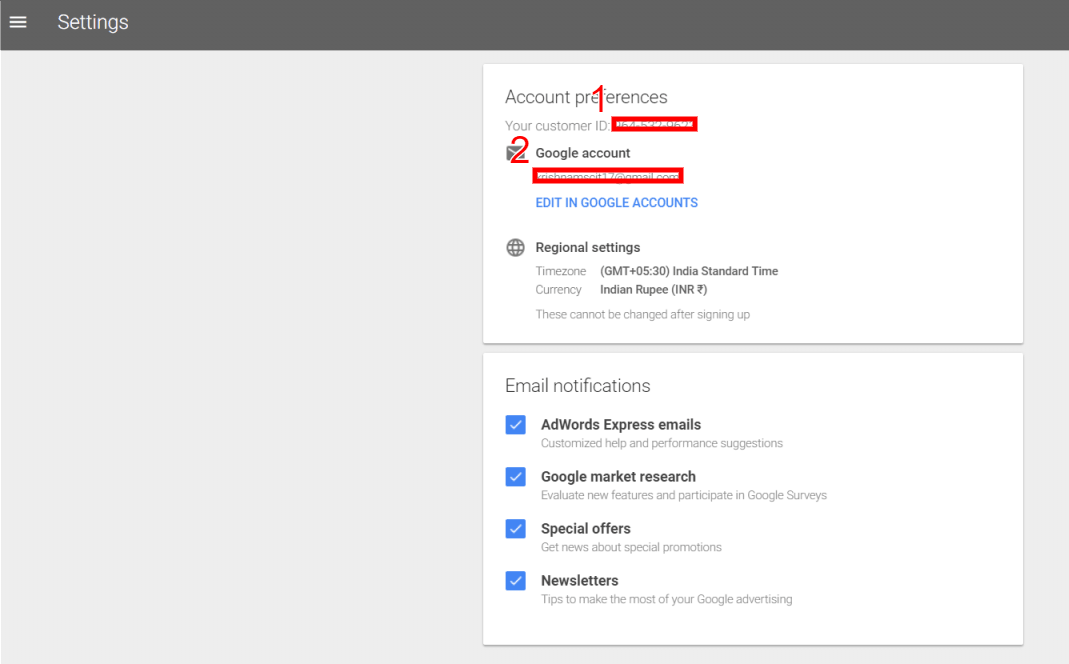
Help – This might be the google adwords express help centre, here you might get the solution for all the necessary doubts from the official google experts.
Let we see about how to create a new ad for your business with simple and very quick steps with details image representations.
How to create your first ad using the google adwords express
- Goto to Main Menu at the left top cornet
- Select the Ads option
- Click the CREATE NEW AD option on the dashboard
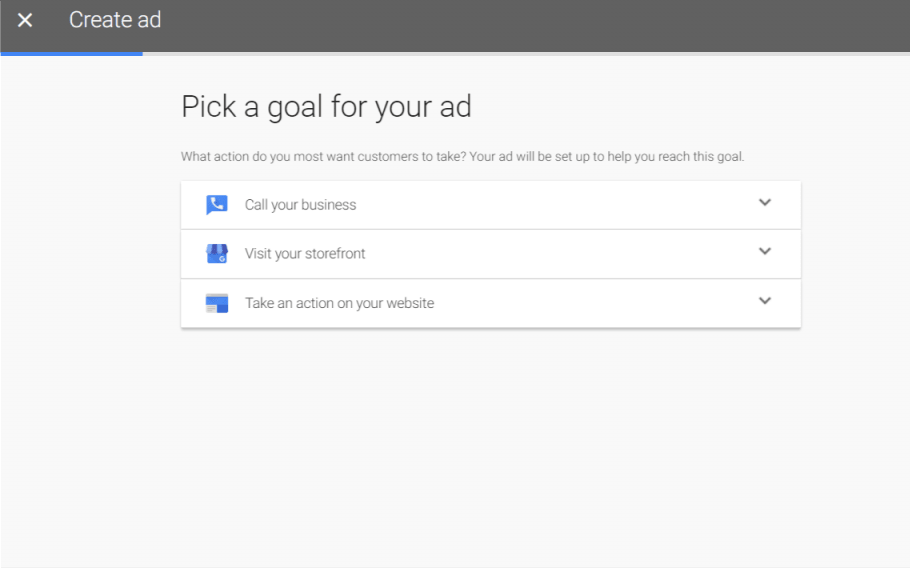
- Next, pick the goal for your ad that should fulfil your needs.
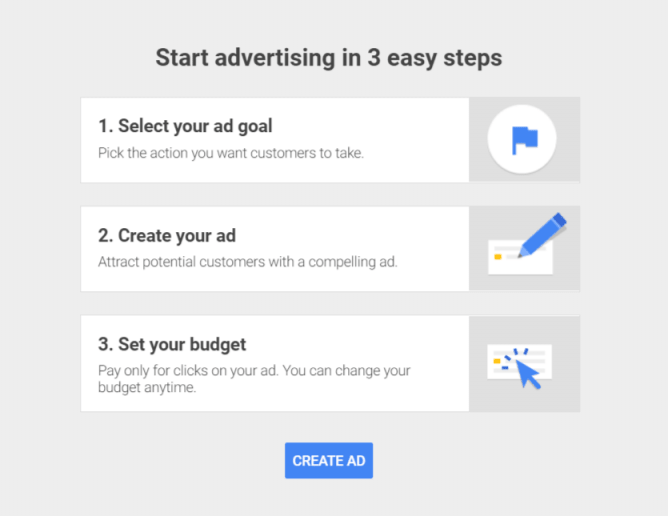
They are
- Call Your Business
- Visit Your Storefront
- Take an action on your website
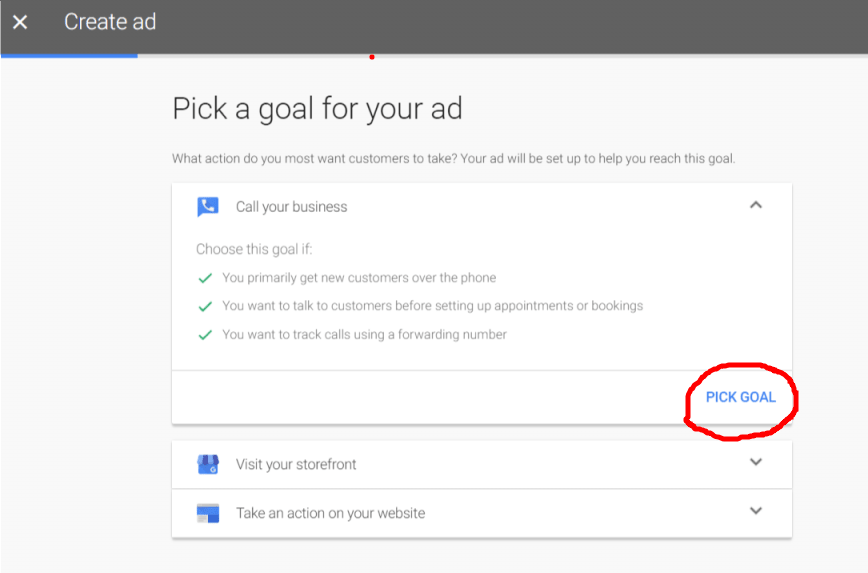
- Select the Pick Goal option at bottom of each goal selection window
How to Create Adwords Express ad for Call Your Business Goal:
- Select Ads option
- Click on Create New Ad option
- Select the Goal for your ad
- Select the Pick Goal option
- Select the location for covering your targeted audience. (Where are your customers?)
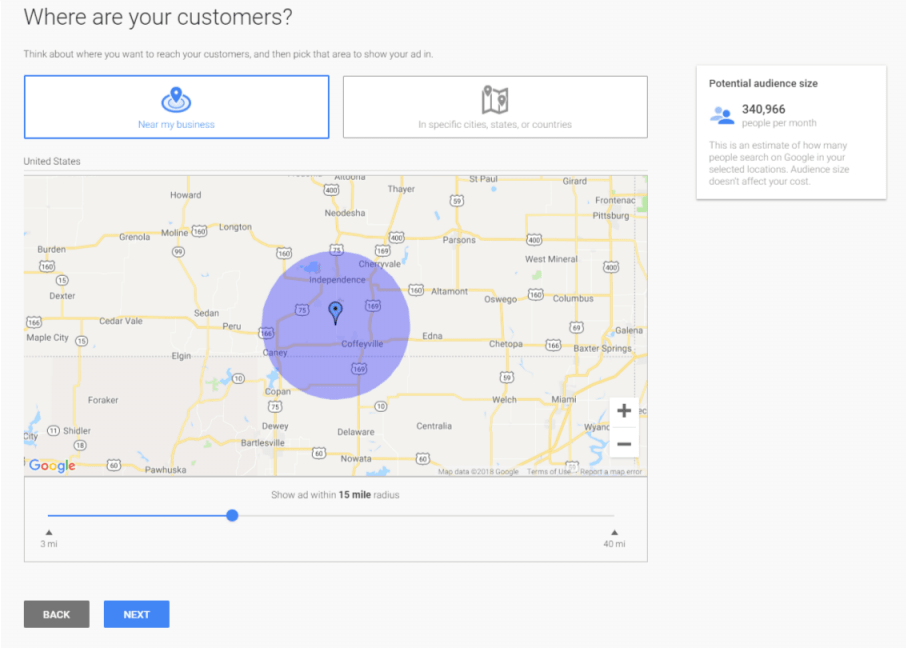
Select any one option of the below
- New My Business
- In specific cities, states or country
Select the radius for covering your targeted audience.
Then, click Next button
Fill Information about your Product or Services
- Select the language you going to target on your ad
- Select your Business Category (It automatically gets your business category from your my business account, and you can also change your business category)
- Also you can add your new business category.
- Enter your keywords and phrases that should replicate your product or service
- You can add multiple keywords by clicking Add Another option.
- Then Click Next button.
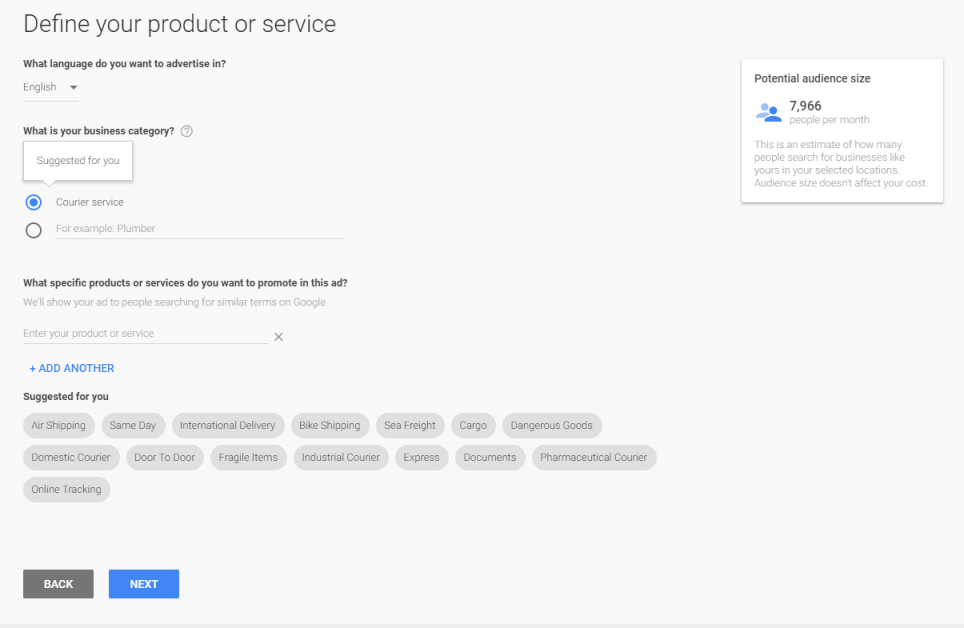
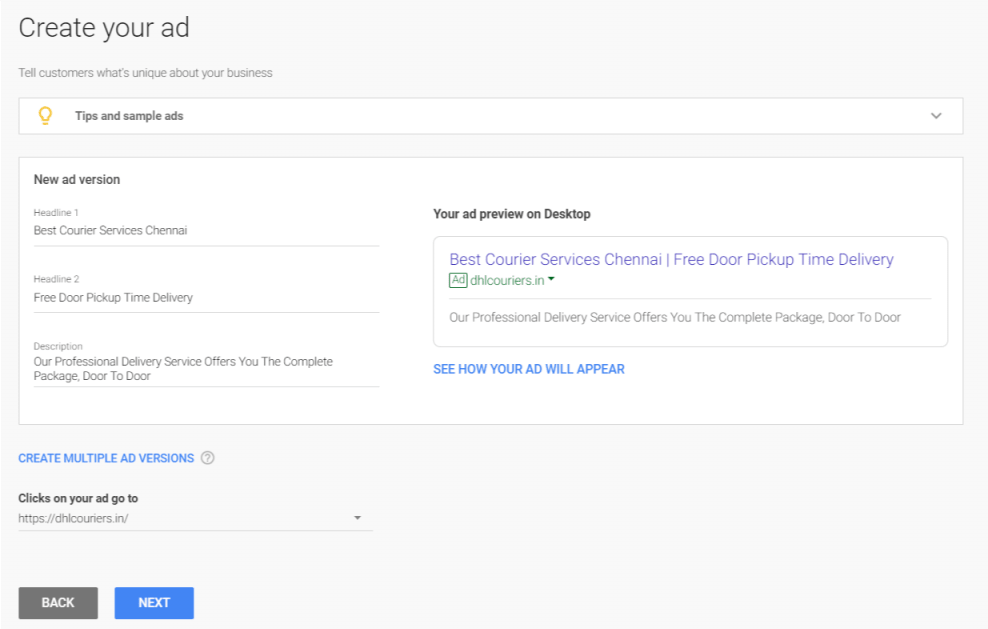
Create Your Ad Sample
- Enter the Headline 1 with in 30 characters, headline should promote your product or business.
- Enter the Headline 2, that should also with in 30 characters, you can add more ad information on this field.
- Enter the description, that will little briefly explain about your business or product information to your targeted audience. This is very important, that should only make impact on your ads. User can maximum make a click decision based on this field only. This field also make very good impact on CTR (Click Through Rate). So be focus on your two headlines and descriptions.
- You can also create multiple ad by using the Create Multiple Ad Versions options
- Then, enter your website url, that should only be appear at the advertisement, when the user click on your ad, the user will directed into the place what you have entered on this field. You can also add your My Business Account url on this place, if you doesn’t have a website.
- Preview of the ads you are created will be appear on the right side of the board.
- Then click on the Next button
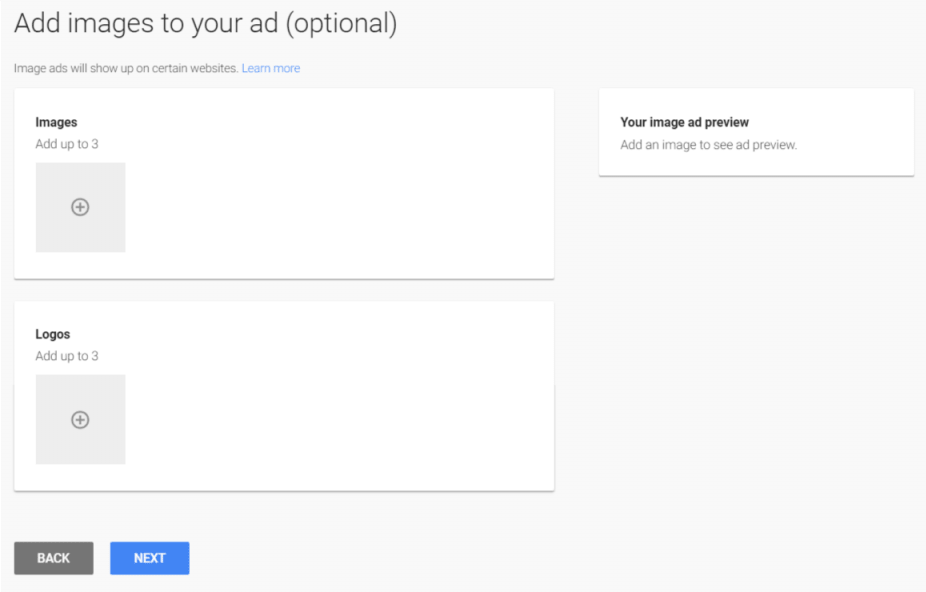
Additional option to add images to your ad
- Click the Plus icon on the first box to add multiple images for your ad, maximum you can add 3 images.
- Click the Plus icon on the second box to add multiple logos for your ad, maximum you can add 3 logos.
- Your added images preview will display on the right side of the windows.
- Then, click the Next option
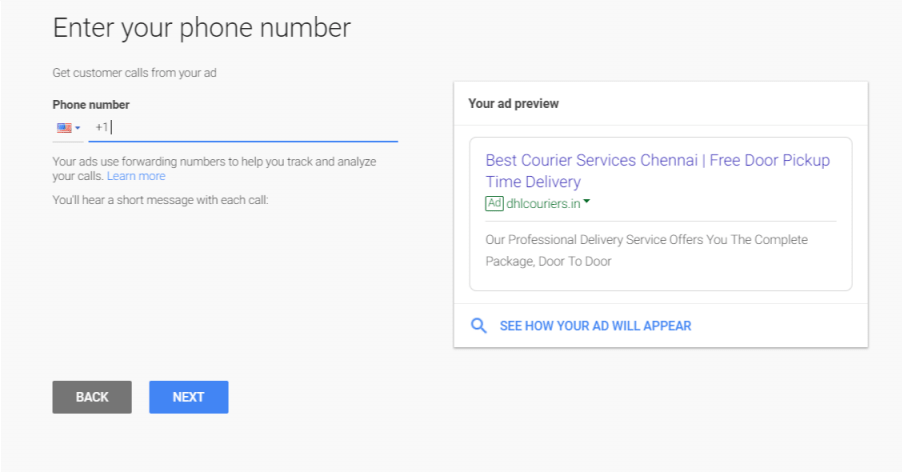
Next, add your business phone number
- Click on the phone number field
- Enter your business phone number
- To track the calls that comes from ads, the call forwarding option will be provided by adwords express ads. This might helps to track the calls that should comes from the advertisements.
- Click the Next button, to move further steps.
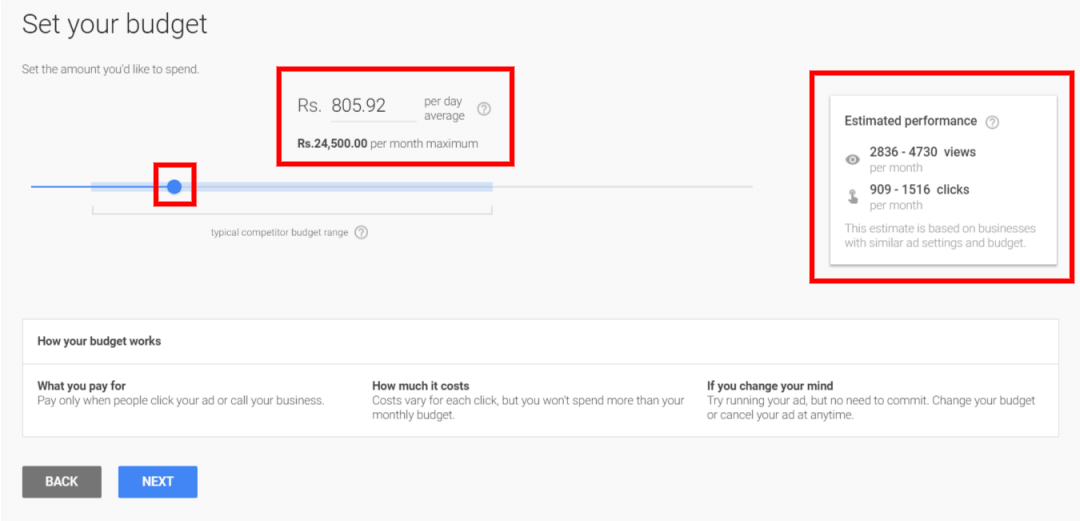
Set the Monthly Budget for your ad
- Here you can select the monthly amount that you willing to spend.
- Select the picker and adjust your monthly budget.
- You can also able to see the amount you may averagely going to spend on each day.
- Depending on the range you selected, you can also see the estimated clicks and views per month.
- After all are set correctly, then click the next button.
Review All the Ads Settings
Shows all the complete information about the option which you have already set. Now just you want to take a recap of all the entered options are correct. Here you can able to see the information about,

- Ad Name
- Estimated Performance (Views and Clicks per month)
- Your Ad Goal
- Locations of the Ad
- Images added on the ad
- Business Phone Number
- Business Category
- Monthly Budget
- Preview of your Ad
All the above mentioned options are editable, if you not okay with your details, you can change everything as you want.
Then, click the Next button to move to next steps
Next, it will ask you to move to Dashboard
In the dashboard area of the specified ad, you can able to see all the features and functions that has been added are viewable.
Here it will give more options to edit the details of your advertisement.
It also shows the performance details regarding the advertisement, they are:
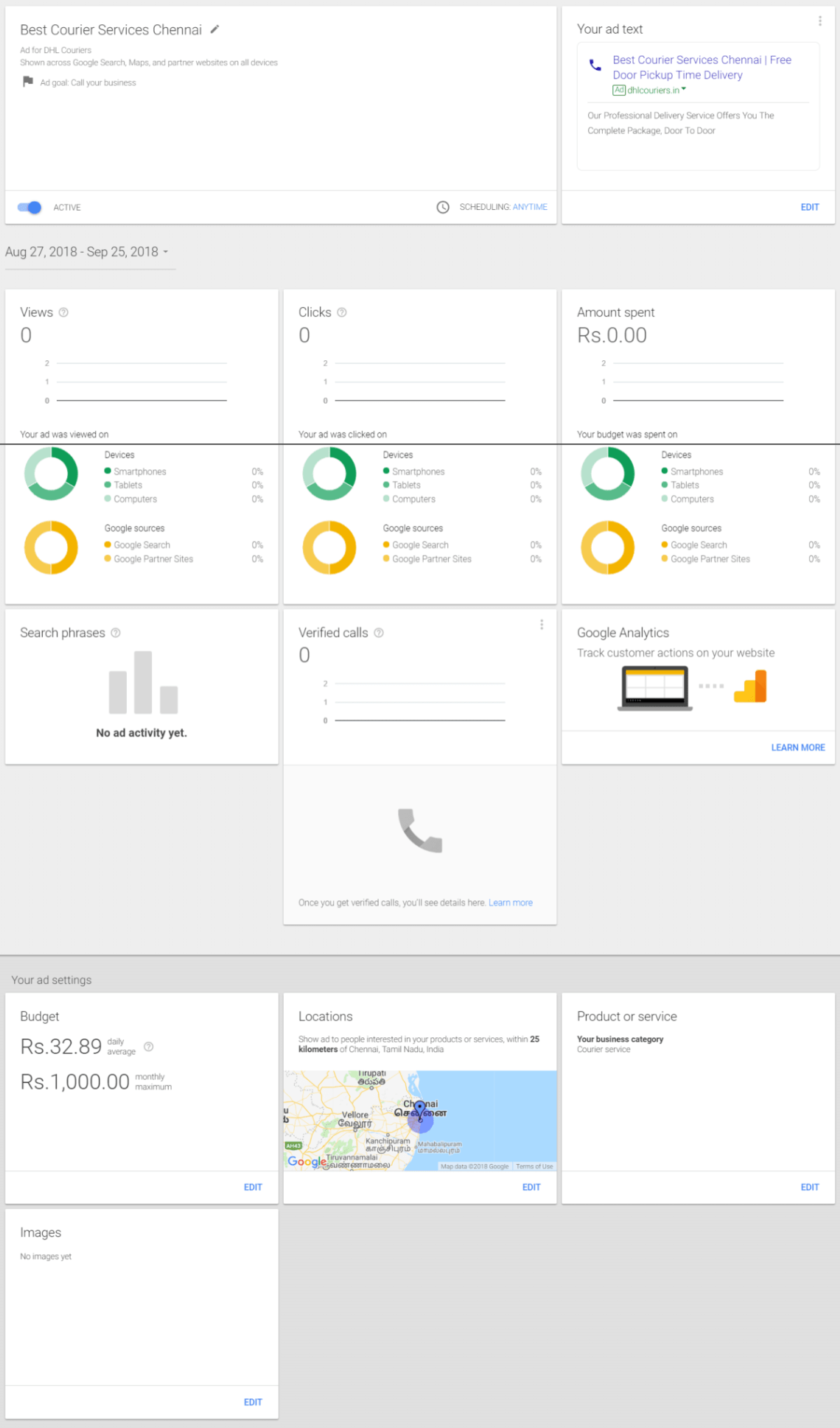
- Date Range
- Views (In Devices, In Google Sources)
- Clicks (In Devices, In Google Sources)
- Amount Spent (In Devices, In Google Sources)
- Search Phrases (All keywords you have selected)
- Verified Calls
- Google Analytics Report
Once you have verified all the details you entered are correct, then you have to move on the final stage to run your ad, that is billing.
Payment and Billing Information
To run the ad successfully, the final stage is to add balance on your account, and the account should be in active mode. For that you have to enter all the necessary billing details. Let we see what are the important details that should be required for finishing the billing details.
- Goto Main Menu
- Select the Billing options, you will be redirected to billing dashboard
- In the Billing section you will see two option
- Billing Management
- Promotional Codes
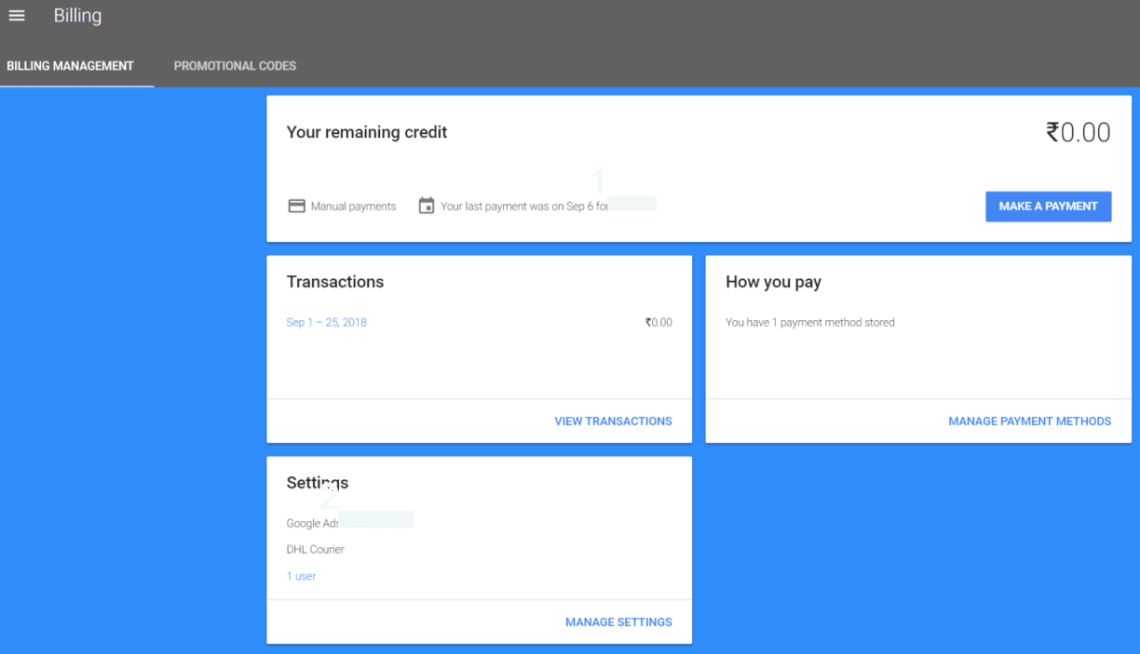
- By using the Billing Management you can pay the amount for your advertisement. Make a payment is the final stage to get your ad run. Let see what are the details will list on Billing Management,
- Your Remaining Credit
- Transactions
- How to pay
- Settings
How to Create Adwords Express ad for Visit Your StoreFront:
Main motivation of this kind of ad is to bring customers into your store, that is located in the physical area.
To create the ad using the goal of visit your storefront is also follows the same procedure that has been discussed earlier for the goal of call your business.
Let me list out the general procedure that has to be come for creating ad on using the visit your storefront goal: They are
- Ad Selection Option
- Goto Create New Ad option
- Choose your advertisement goal
- Select the Pick Goal option
- Select the location for covering your targeted audience. (Where are your customers?)
- Complete your product and services information
- Create Ad Template
- Add images and logos for your ad
- Add phone number of your business
- Choose the monthly budget for your ad
- Recap all the settings
- Complete the Payment Information
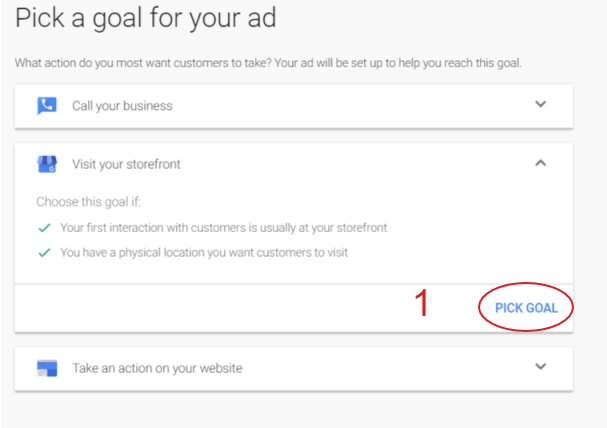
By following the above mentioned steps, you can easily able to run the advertisement for the goal of visit the storefront.
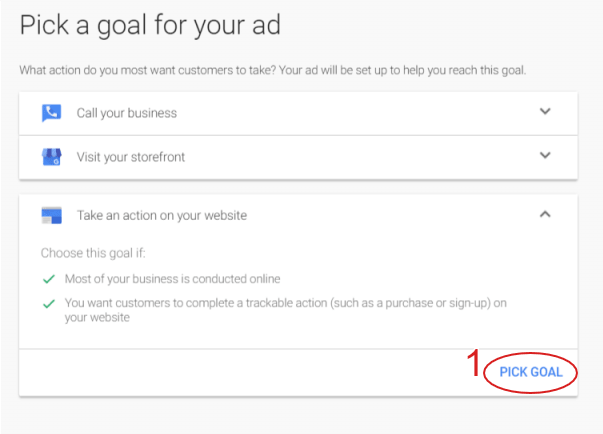
How to Create Adwords Express ad for Take an action on your website:
This goal type is mainly focused to drive more customers into your website, and make them to do certain actions on your website, like filling the form, buying products, sign-ups, etc.,
To make a advertisement by using this goal, just follow the steps given below.
- Select and Enter Your Ad info
- Click the + button to create new ad
- Select the goal that is more suitable for your business (EX: Take an action on your website)
- Then, click Pick Goal option
- Select the location you want to cover your audience
- Add product and service info
- Make your own ad design
- Add logo and image for ad
- Setup your monthly budget
- Overall Review of already selected fields
- Enter the billing details to complete the process
How to Schedule Ads on Google Adwords Express
To scheduling the ad is depending upon the user perception. The main purpose of using scheduling option in the ads to reach the targeted audience when they are interested on the internet for your search phrases. Before going to simply implement the scheduling option, you must have to analyse you targeted audience presence time on the internet for your targeted phrases.
Let we start to see how to schedule your ad, before going to schedule your ad, you should have to complete all the necessary details on your ad. Once you successfully created ad on the google adwords express now you can applicable to edit to schedule your ad.
- Goto your Ad
- Click the Scheduling option at the bottom of your ad detail
- Click the drop down button to select your option
- You can see two options, one is Anytime and another is Custom hours
- Select custom hours to change your ads scheduling period
- Now adjust your scheduling time for all days from Monday to Sunday
- You can also add Timeslot for your ad in daily basis by clicking the +TIME SLOT option
- Finally, click the Save button
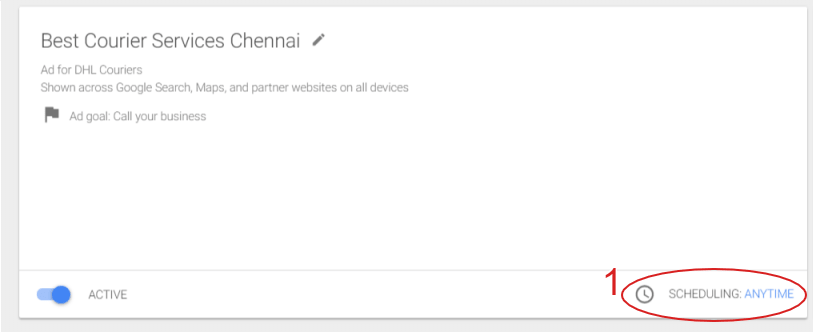
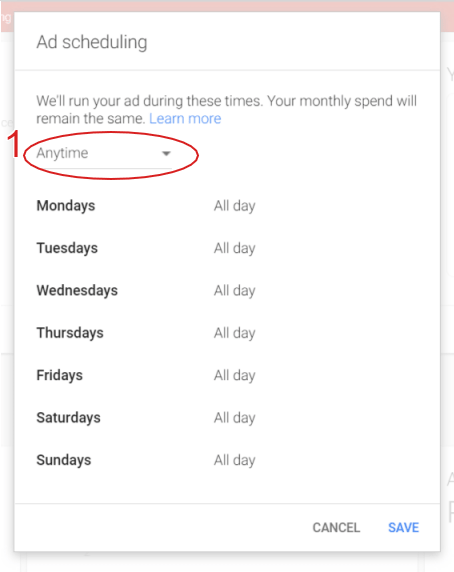
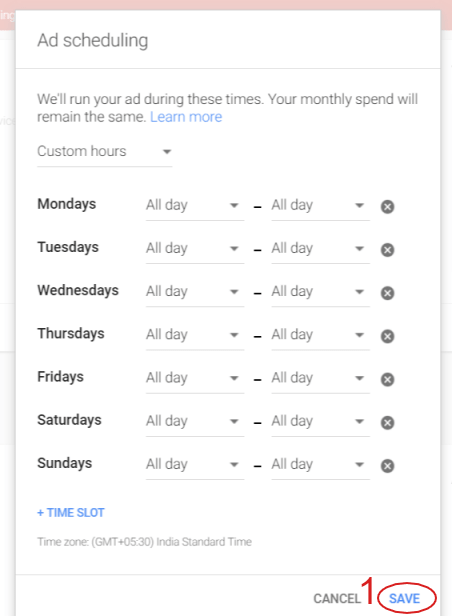
Now your advertisement is all set with the scheduling options. Your ad will successfully run on our scheduling time.
How to make a billing payment in Adwords Express
- Goto Main Menu
- Select Billing
- Select Billing Management
- Click the Make A Payment button
- Select the payment method (Net Banking, Moley Transfer, Google Pay/BHIM UPI, Credit cart or Debit Card)
- Enter your account details regarding the type of payment method you selected.
- Enter your amount
- Finally click Make A Payment button
- It will redirect you into third party service provider, and it is the mediator between you bank and google Adwords Express account.
- It will ask you verification code regarding the type of payment method you selected.
- Once you verified your account, then the amount will be credited into your Adwords Express account.
- Now your ad will be displayed successfully on google search and google map, when the user enters the search phrases you are selected.
Conclusion
Let we see the overview of Google Adwords Express, the Adwords Express is the best advertisement product for managing and giving better performance for your ad that will definitely give you more conversions for your business. Maintenance of this product is very easy and best for your business. You don’t need to spend daily time on your budget fixing for advertisements. You just need to set your monthly budget with daily target. You can edit your ad at any time, whether the ad is running or not. I recommend every business person to at-least try this once for your business.

 Latest Digital Marketing Trends Tips Guidelines
Useful post..!!!
Got more information about google adwords express..!!
Very user friendly steps which is easily understandable.
Thanks for the post..!!
LikeLiked by 1 person
Thanks for your valuable comment….
LikeLike